
Free Online Calculator: Basic and Scientific
This basic and scientific online calculator is fast, free, and easy to use for all your calculations. Perform mathematical and scientific operations in just a few seconds with a calculator compatible with both mobile devices and PCs, offering fast and accurate results.
The calculator we offer allows you to perform quick and accurate calculations in just a few seconds. On a single page, you can use a modern online calculator that combines both basic functions and advanced tools to meet all your daily needs. Thanks to its clear and responsive interface, users can easily perform addition, subtraction, multiplication, division, and many other operations without any difficulty.
Our platform also provides you with a full-featured scientific calculator as well as an easy-to-use basic calculator for students, professionals, and everyday users. A detailed guide helps you understand each feature step by step so you can get the most out of the Simple Online Calculator. After each calculation, the results are displayed instantly, and you can also download your calculations in CSV or PDF format for easy storage.
If you'd like to learn about the origins of this tool, our article on the history of the calculator traces its evolution, from the first mechanical calculating instruments to the modern digital calculators we use today. You may be wondering why you should choose a digital version over a physical calculator: our comparison of online calculators versus physical calculators explains in detail the advantages of each option based on your needs.
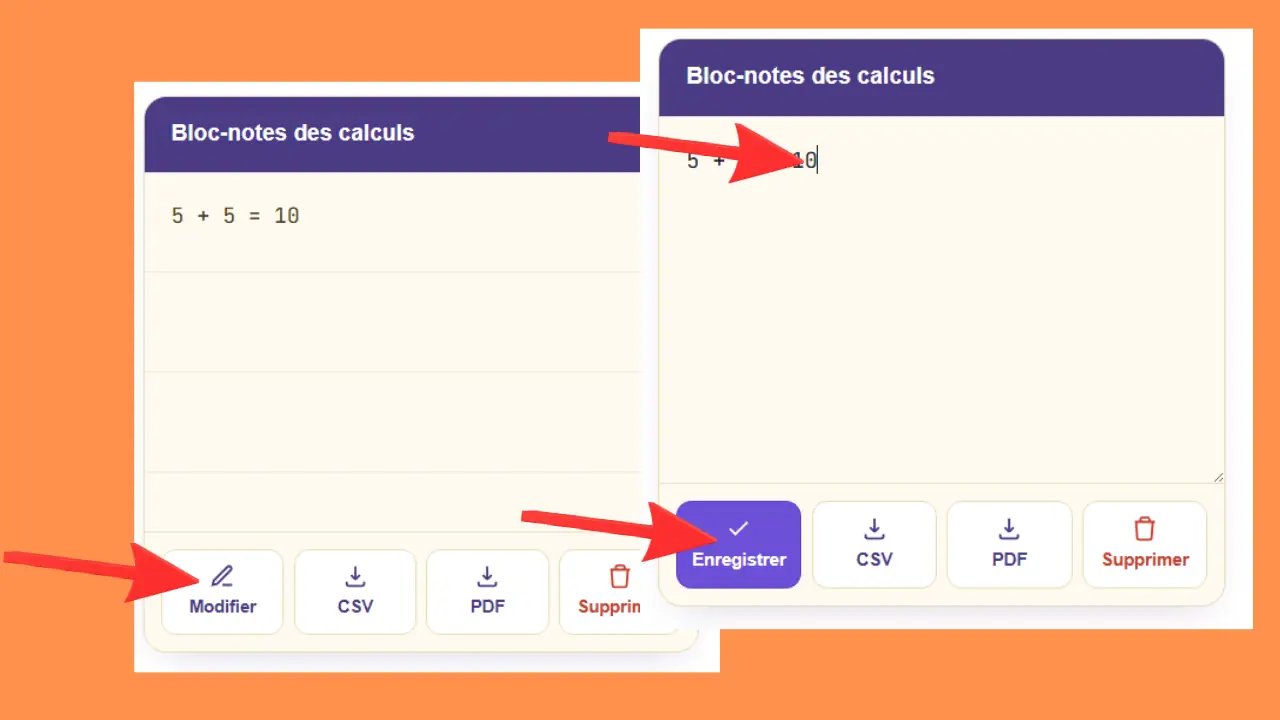
Our calculator now includes a handy calculation notepad that automatically saves every operation you perform, so you don’t have to write them down manually. You can view your complete calculation history at any time, edit or add to your notes using the “Edit” button, and then save them with a single click. Once your calculations are saved, you can download them directly in CSV or PDF format, making it easy to save, share, or archive them for professional or personal use. To learn more about the origins and how this tool works, you can check out the general definition of a calculator on Wikipedia.
Keyboard Shortcuts — Basic & Scientific Calculator
Below are all the keyboard shortcuts available for the basic calculator and the scientific calculator, which can be used on Windows and Mac.
| Keyboard Key | Button | Action |
|---|---|---|
| 🔢 Numbers & Decimal | ||
| 0–9 | 0–9 | Enter a digit |
| . or , | . (period) | Decimal separator |
| +/− | ± | Change the sign (positive/negative) |
| ➕ Basic operations | ||
| + | + | Addition |
| − | − | Subtraction |
| * | × | Multiplication |
| / | ÷ | Division |
| % | % | Percentage Calculations |
| Input | = | Confirm and display the result |
| ⌫ Clear & Reset | ||
| Back ← | ← (arrow) | Delete the last digit |
| Delete or C | CE | Clear current input |
| Esc | CE | Reset the calculator |
| 💾 Memory | ||
| Ctrl + M | MS | Save to memory (Memory Store) |
| Ctrl + R | MR | Recall from Memory (Memory Recall) |
| Ctrl + P | M+ | Add to Memory (Memory Plus) |
| Ctrl + Q | M− | Subtract from memory (Memory Minus) |
| Ctrl + L | MC | Clear Memory |
| 🖥️ Interface | ||
| Ctrl + Z | Undo | Redo |
| Ctrl + Y | Redo | Restore the last undone action |
| Ctrl + Tab | Basic / Scientific | Switch calculation mode |
| Ctrl + 1 | S | Small size (calculator + notepad) |
| Ctrl + 2 | M | Medium size (default) |
| Ctrl + 3 | L | Large size |
ℹ️ On Mac: Replace Ctrl with Cmd for keyboard and interface shortcuts.
| Keyboard key | Button | Action |
|---|---|---|
| 🔢 Numbers & Decimal | ||
| 0–9 | 0–9 | Enter a digit |
| . or , | . (period) | Decimal separator |
| ➕ Basic operations | ||
| + | + | Addition |
| − | − | Subtraction |
| * | × | Multiplication |
| / | ÷ | Division |
| % | % | Percentage Calculations |
| Input | = | Confirm and display the result |
| ⌫ Clear & Reset | ||
| Back ← | ⌫ | Delete the last digit |
| A or Delete | AC | Clear All (All Clear) |
| Esc | AC | Reset the calculator |
| 💾 Memory | ||
| Ctrl + M | MS | Save to memory |
| Ctrl + R | MR | Recall from memory |
| Ctrl + P | M+ | Add to memory |
| Ctrl + Q | M− | Subtract from memory |
| Ctrl + L | MC | Clear memory |
| 🖥️ Interface | ||
| Ctrl + Z | Undo | Redo |
| Ctrl + Y | Redo | Restore the last undone action |
| Ctrl + Tab | Basic / Scientific | Switch calculation mode |
| Ctrl + 1 | S | Small size (calculator + notepad) |
| Ctrl + 2 | M | Medium size (default) |
| Ctrl + 3 | L | Large size |
| 📐 Trigonometry | ||
| S | sin | Sine |
| C | cos | Cosine |
| T | tan | Tangent |
| Shift + S | sin⁻¹ | Arc sine (inverse) |
| Shift + C | cos⁻¹ | Arc cosine (inverse) |
| Shift + T | tan⁻¹ | Arc tangent (inverse) |
| D | DEG | Toggle between degrees, radians, and grads (DEG → RAD → GRAD) |
| 📈 Hyperbolic trigonometry | ||
| Alt + S | sinh | Hyperbolic sine |
| Alt + C | cosh | Hyperbolic cosine |
| Alt + T | tanh | Hyperbolic tangent |
| Alt + Shift + S | sinh⁻¹ | Inverse hyperbolic sine (arsinh) |
| Alt + Shift + C | cosh⁻¹ | Inverse hyperbolic cosine (arcosh) |
| Alt + Shift + T | tanh⁻¹ | Inverse hyperbolic tangent (artanh) |
| ✏️ Powers & Roots | ||
| ^ | xʸ | Any power |
| Shift + 2 | x² | Square |
| Shift + 3 | x³ | Cube |
| Q | √x | Square Root |
| Shift + Q | ⁿ√x | nth root |
| Shift + Q + 3 | ³√x | Cubic root |
| Alt + 2 | 2ˣ | Power of 2 |
| 📊 Logarithms & Exponentials | ||
| L | log | Logarithm to base 10 |
| N | ln | Natural logarithm |
| E | eˣ | Exponential |
| Shift + E | 10ˣ | 10 to the power of x |
| X | EXP | Scientific notation (×10ⁿ) |
| Shift + X | F-E | Toggle scientific notation display |
| Alt + L | log₂x | Base-2 logarithm |
| Alt + Shift + L | logᵧx | Logarithm to a custom base |
| M | mod | Modulo (remainder of division) |
| Shift + A | Ans | Recall the last answer |
| π Constants & Special Functions | ||
| P | π | Pi (3.14159…) |
| Shift + E | e | Constant e (2.71828…) |
| I | 1/x | Inverse of the number |
| ! | n! | Factorial |
| ( | ( | Opening parenthesis |
| ) | ) | Closing parenthesis |
| +/− | ± | Change the sign |
| Shift + R | RND | Random number |
| 🧮 Advanced Functions (2nd) | ||
| Alt (hold down) | 2nd | Enable secondary functions |
| Alt + A | |x| | Absolute value |
ℹ️ On Mac: Replace Ctrl with Cmd and Alt with Option for memory shortcuts, interface shortcuts, and secondary (2nd) functions.
⚠️ Note: Some shortcuts may vary depending on the browser you’re using. If in doubt, click the button directly.
| Keyboard key | Button | Action |
|---|---|---|
| 📝 Calculation Notepad | ||
| Ctrl + E | Edit | Enable Notepad Editing |
| Ctrl + S | Save | Save notes |
| Ctrl + Shift + C | CSV | Export calculation history to CSV |
| Ctrl + Shift + P | Export calculation history to PDF | |
| Ctrl + Shift + Delete | Delete | Clear the entire notepad history |
ℹ️ On Mac: Replace Ctrl with Cmd for notepad shortcuts.
How to Use the Online Calculator?
Basic, scientific, and scientific calculator—everything you need to know to use the calculator effectively, with concrete examples at every step.
📱 How do you use the Simple (Basic) Calculator?
The basic calculator lets you quickly perform everyday calculations: adding up a bill, dividing to split a cost, or calculating percentages for a store discount. It’s simple, fast, and requires no special knowledge.
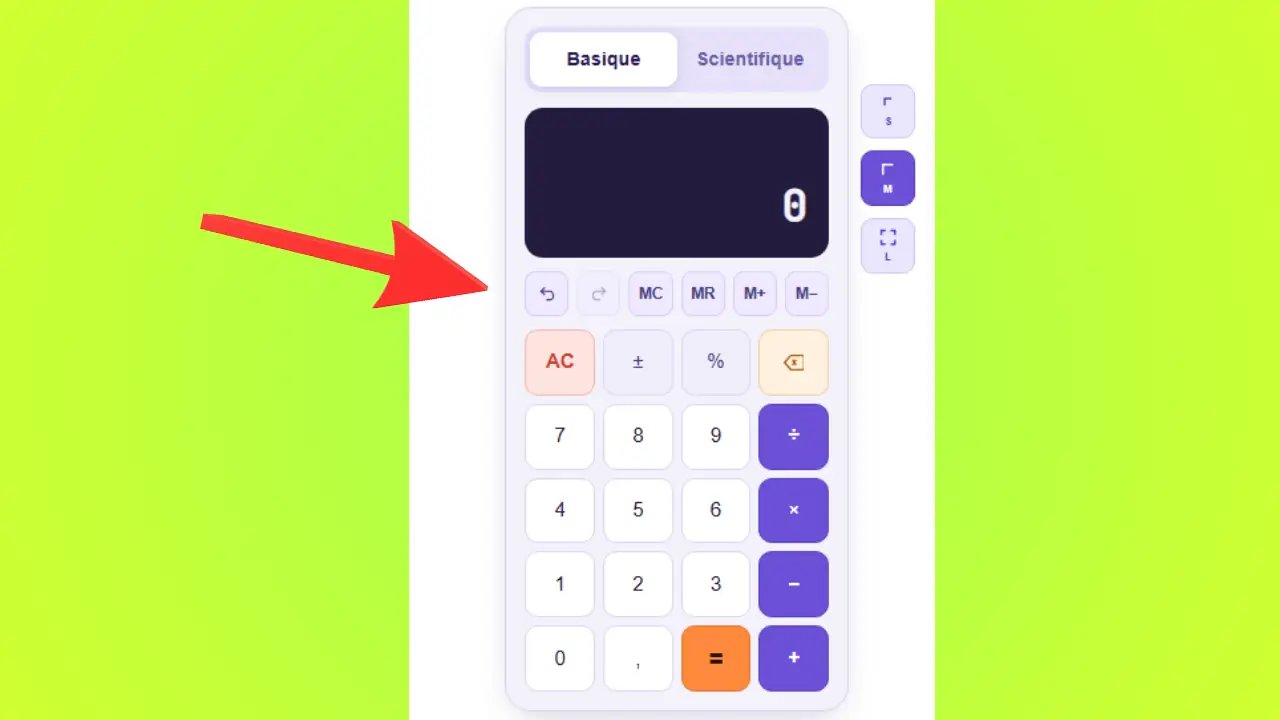
Choose the Mode — Basic or Scientific
At the top of the calculator, two buttons let you choose the calculation mode. The active button is displayed in blue; the inactive button is gray. For simple calculations, Basic mode is always sufficient.

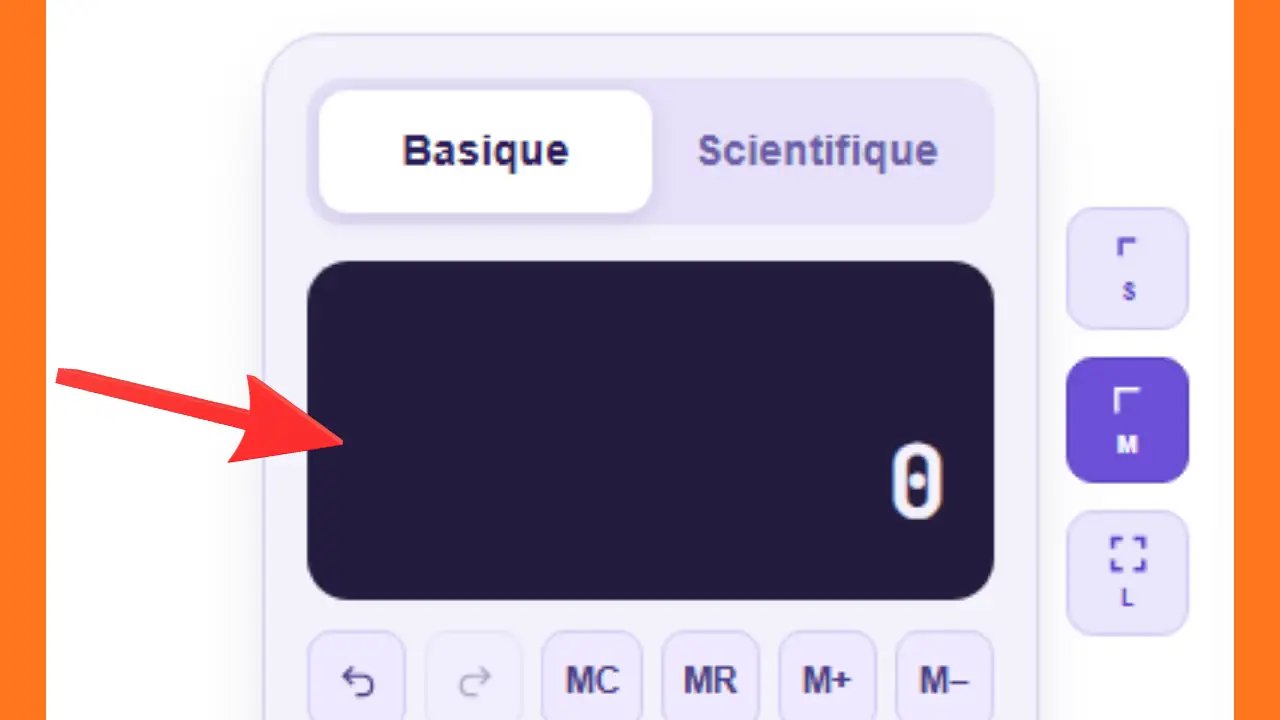
The Display Screen
The black screen at the top of the calculator displays the numbers you enter and the results of your calculations in real time. It also shows the operation in progress before you press the equals button.
Example: You type 5 + 3 → the screen first displays 5, then 3, and after pressing =, it displays 8.
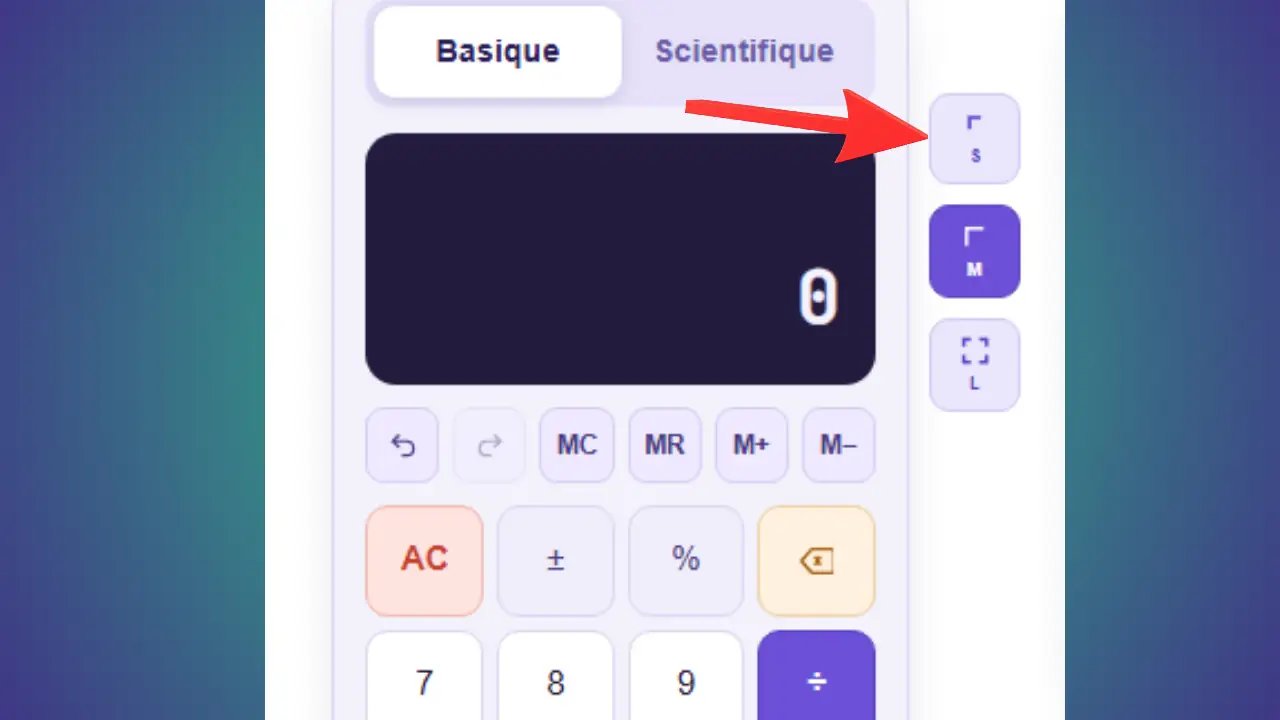
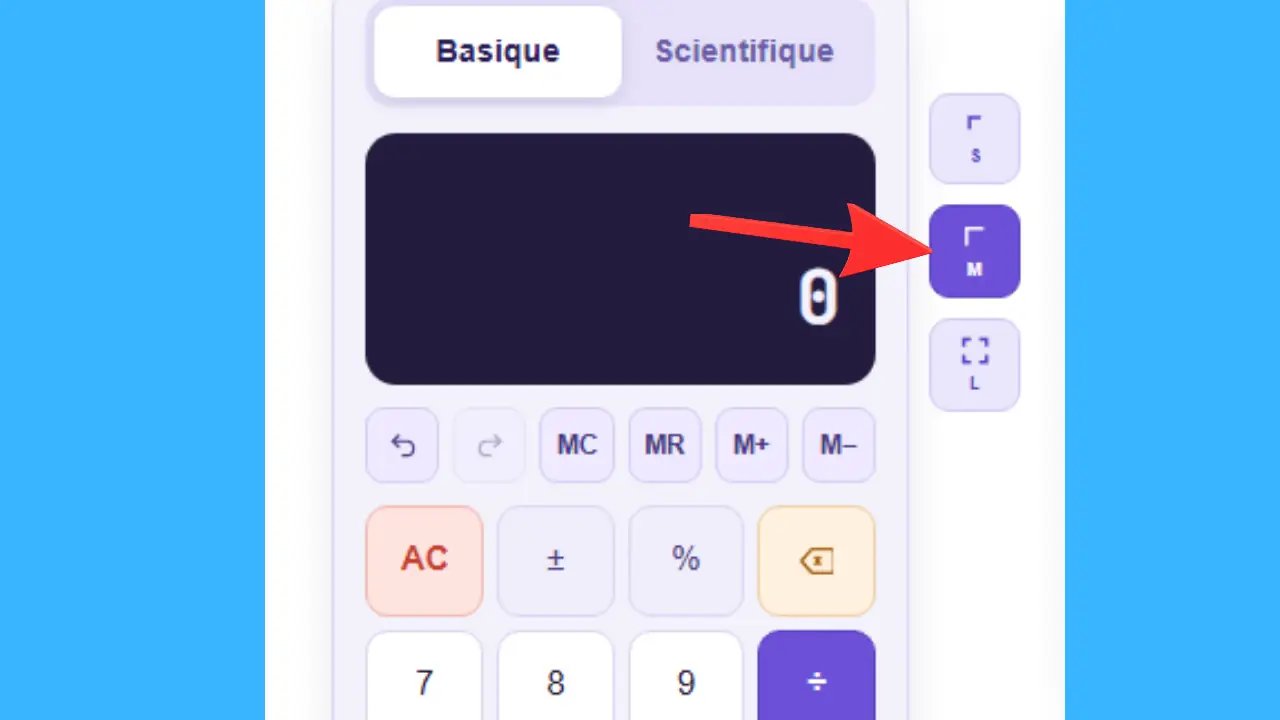
Calculator Size (S, M, L)
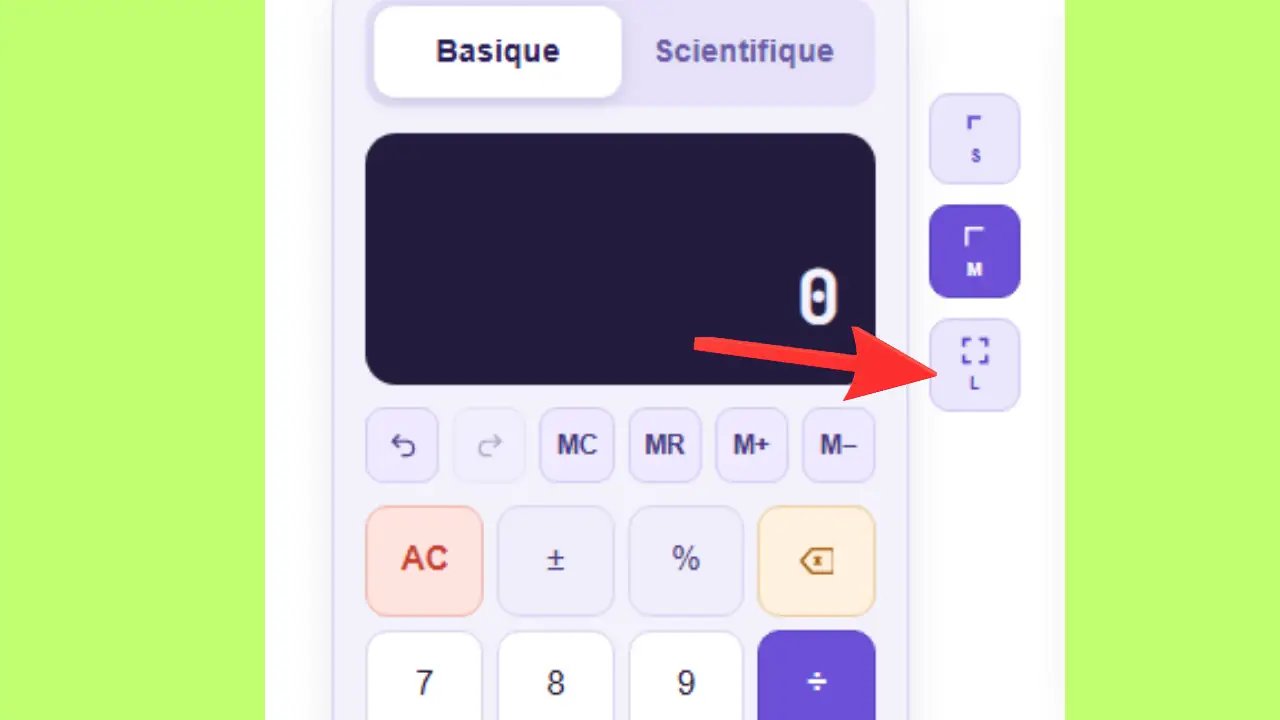
In the top right corner of the calculator, three buttons let you change its size. Both the calculator and the notepad change size together. By default, size M (Medium) is selected.
Used for: Saving space on the page, quick reference.
Used for: Comfortable everyday use, balancing readability and space.
Used for: Better visibility of buttons and text; comfort when using a computer.
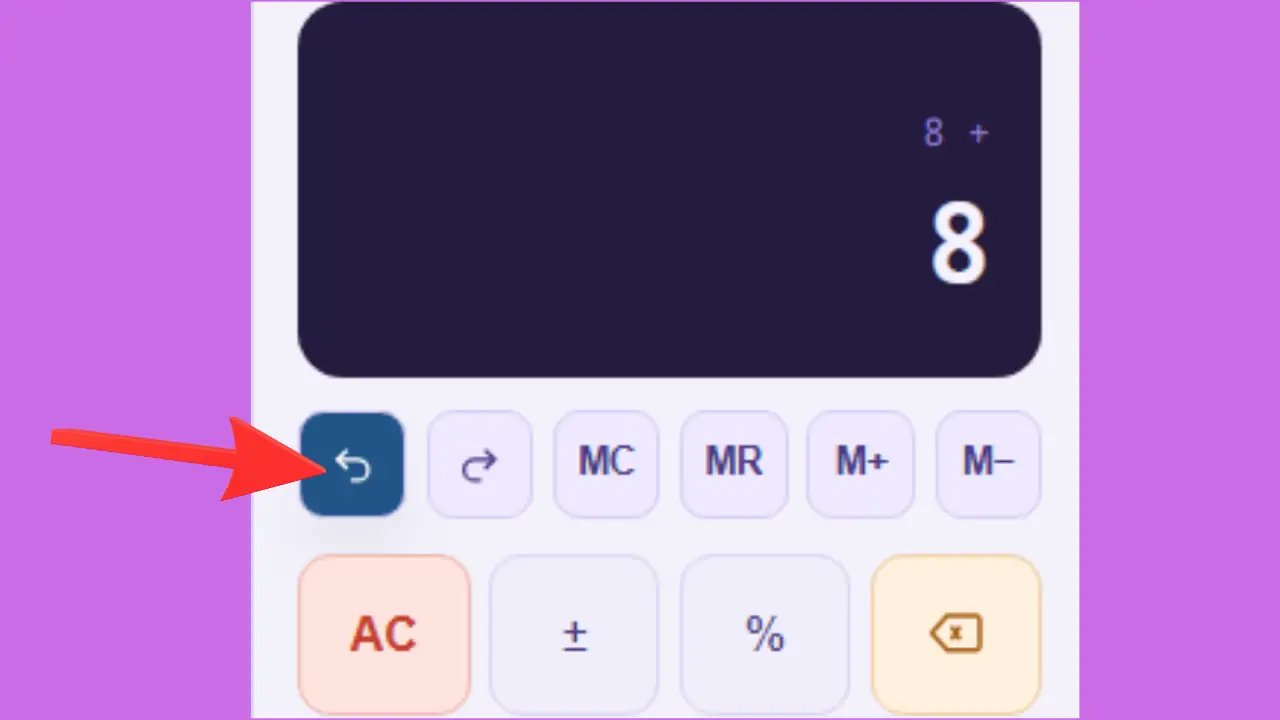
Undo and Redo
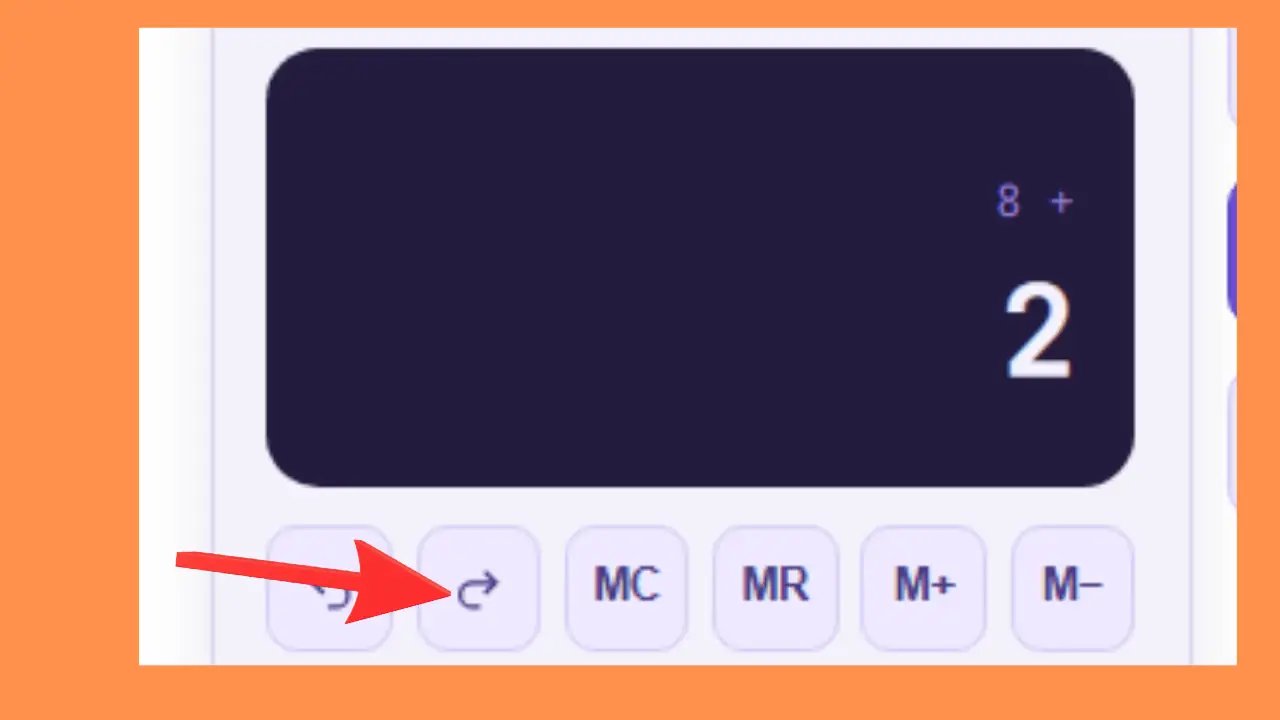
These two buttons let you navigate through your action history, just like in standard office software.
Used for: Going back after an accidental entry or deletion.
Used for: Restoring an action after accidentally using Undo.
The Memory Buttons (MC, MR, M+, M−)
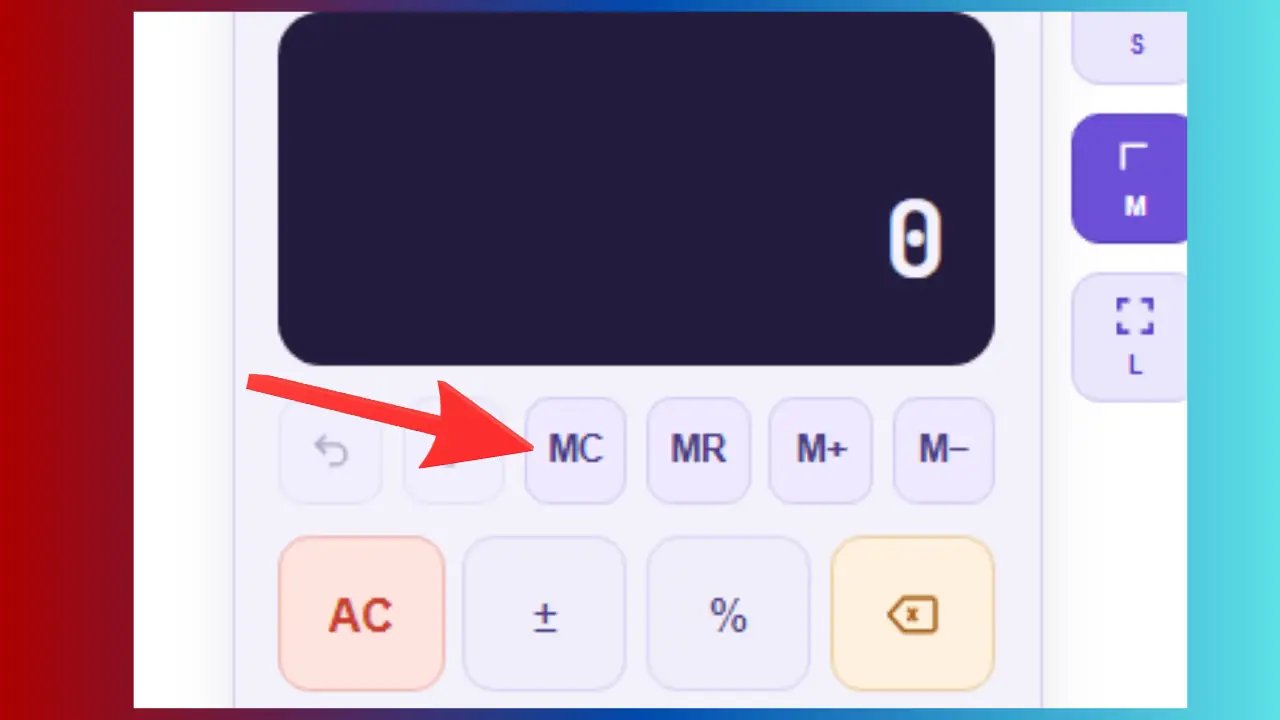
The memory buttons allow you to temporarily save a number and reuse it later in another calculation without having to retype it. Very useful when performing a series of related calculations.
Example: You have stored 100 in memory. You no longer need it → press MC → the memory is cleared.
Used for: Starting with a clean memory before a new series of calculations.
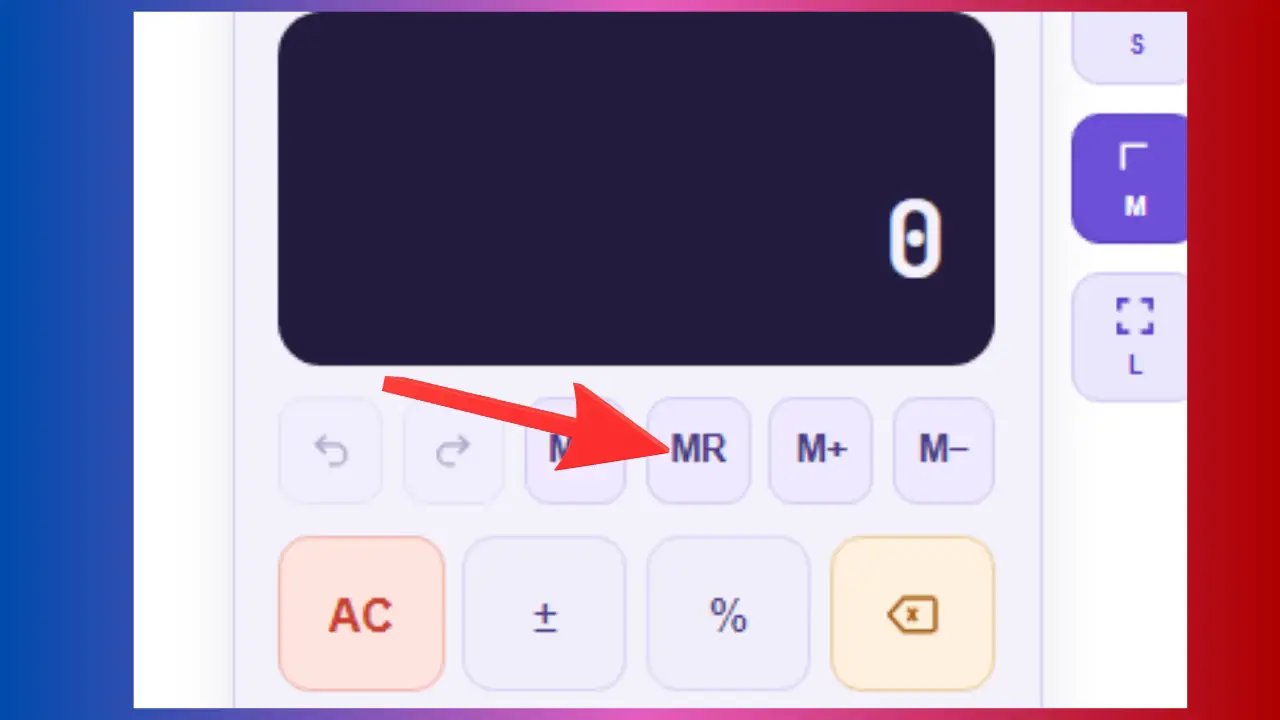
Example: You have stored 250 in memory. Later, you want to add it to 80 → press MR → the screen displays 250, then + 80 = → result: 330.
Used for: Reusing an intermediate result in a subsequent calculation.
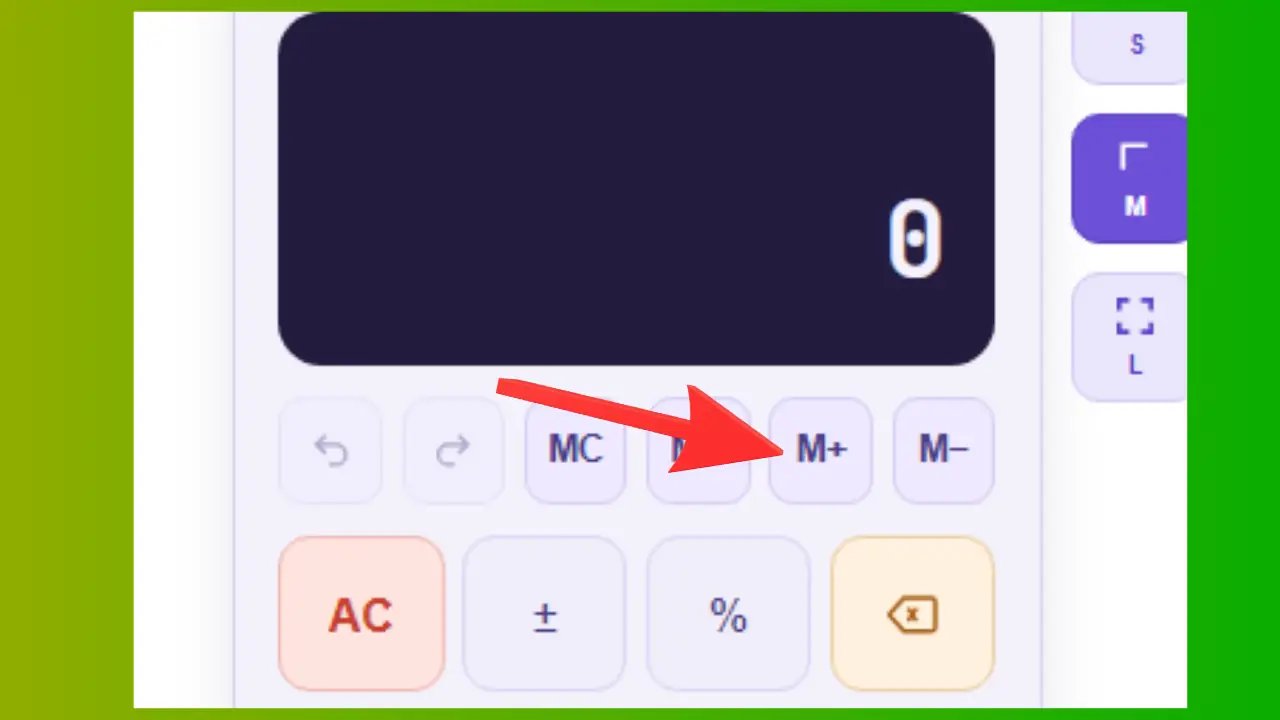
Example: Memory = 20. You calculate 15 + 10 = 25, then press M+ → the memory changes from 20 to 45.
Used for: Adding partial results, such as the total of several separate receipts.
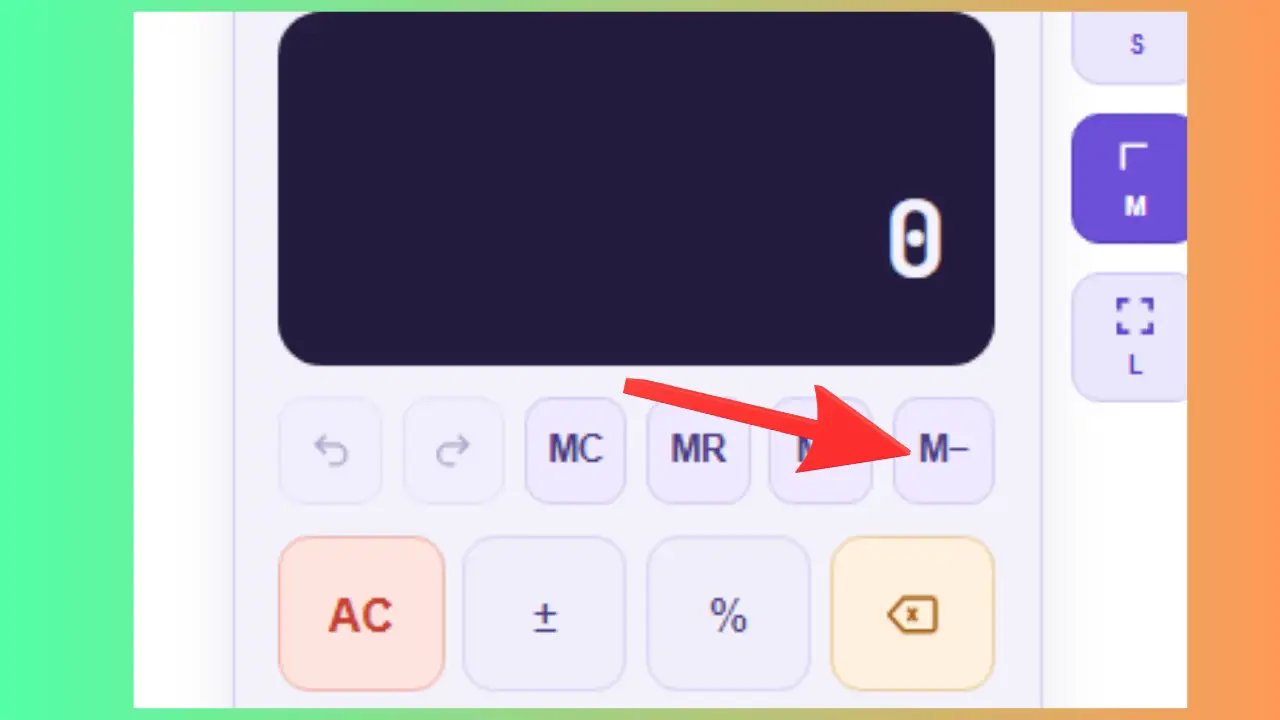
Example: Memory = 100. You display 30 and press M− → the memory changes to 70.
Used for: Deducting expenses from a saved budget, calculating a balance after deduction.
Essential Buttons
These buttons control number entry and allow you to correct or reset a calculation in progress. It’s important to know them before you begin.
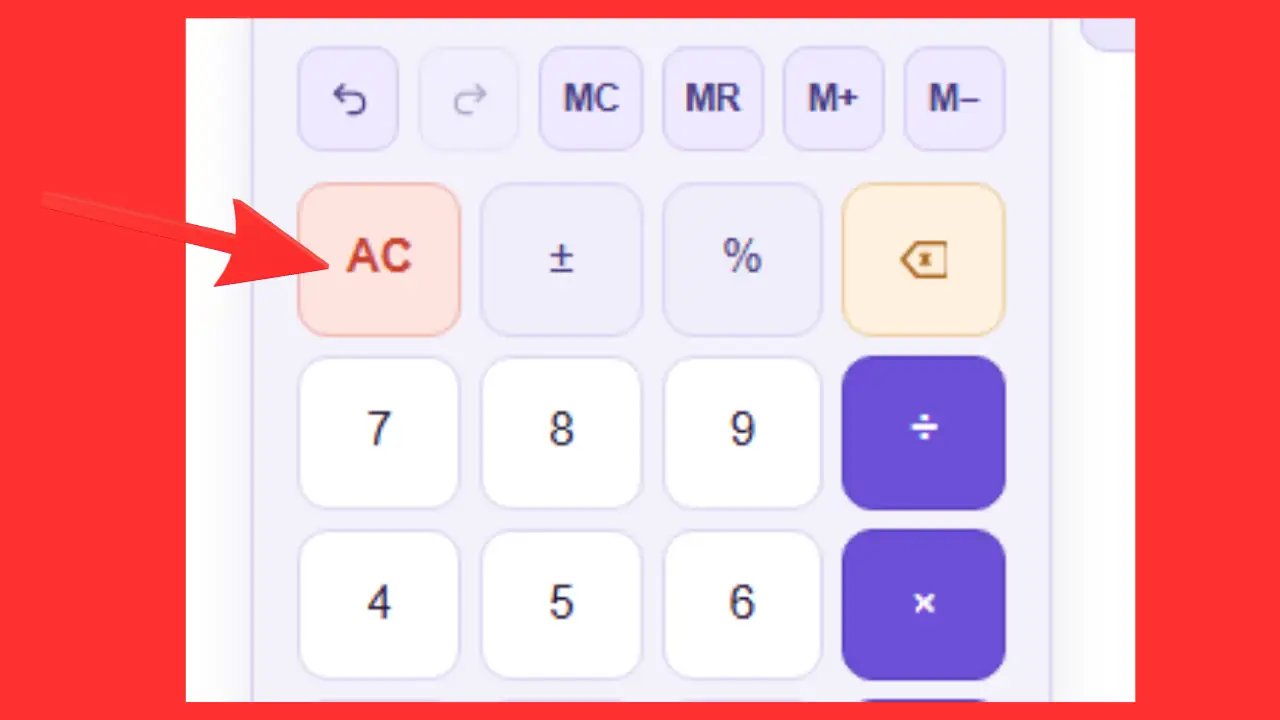
Example: You started typing 250 + 30 but made a mistake at the beginning → press AC to clear everything and retype from the start.
Used for: Correcting a completely wrong calculation, or starting a new calculation with no trace of the previous one.
Example: You type 5 and then press ± → the screen displays −5. Press it again → it returns to 5.
Used for: Calculating losses, debts, subzero temperatures, or subtracted values.
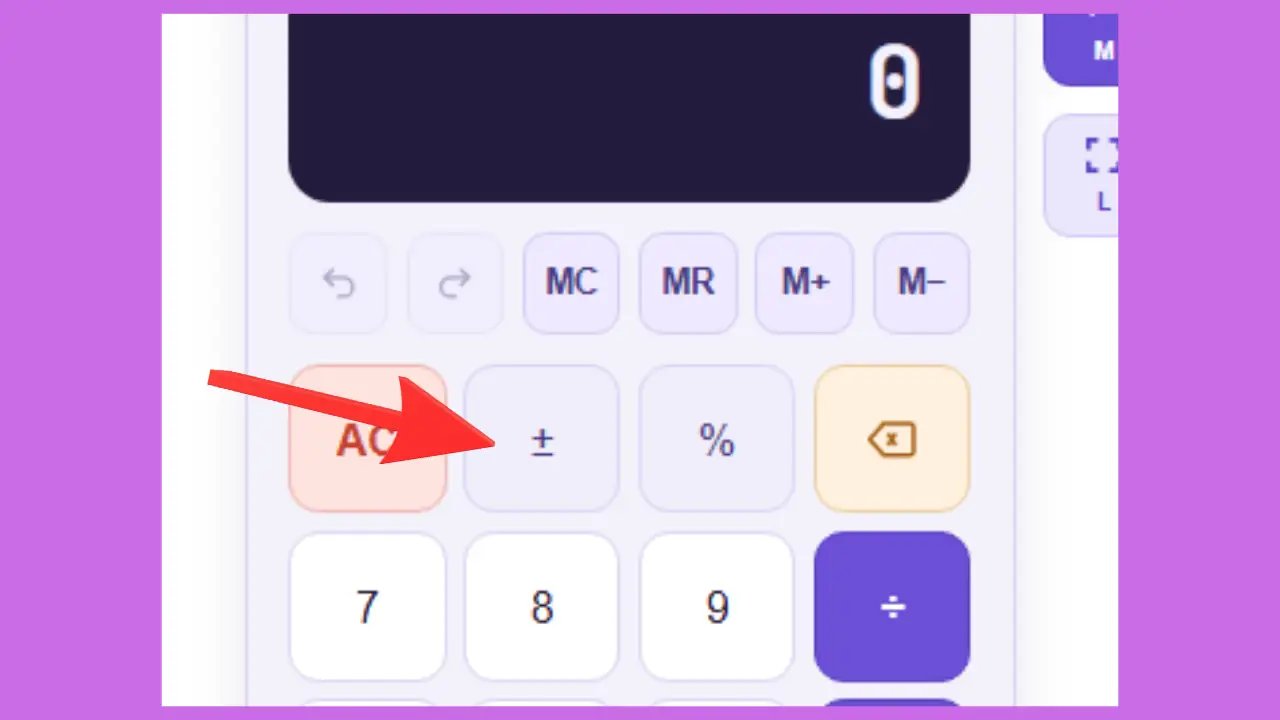
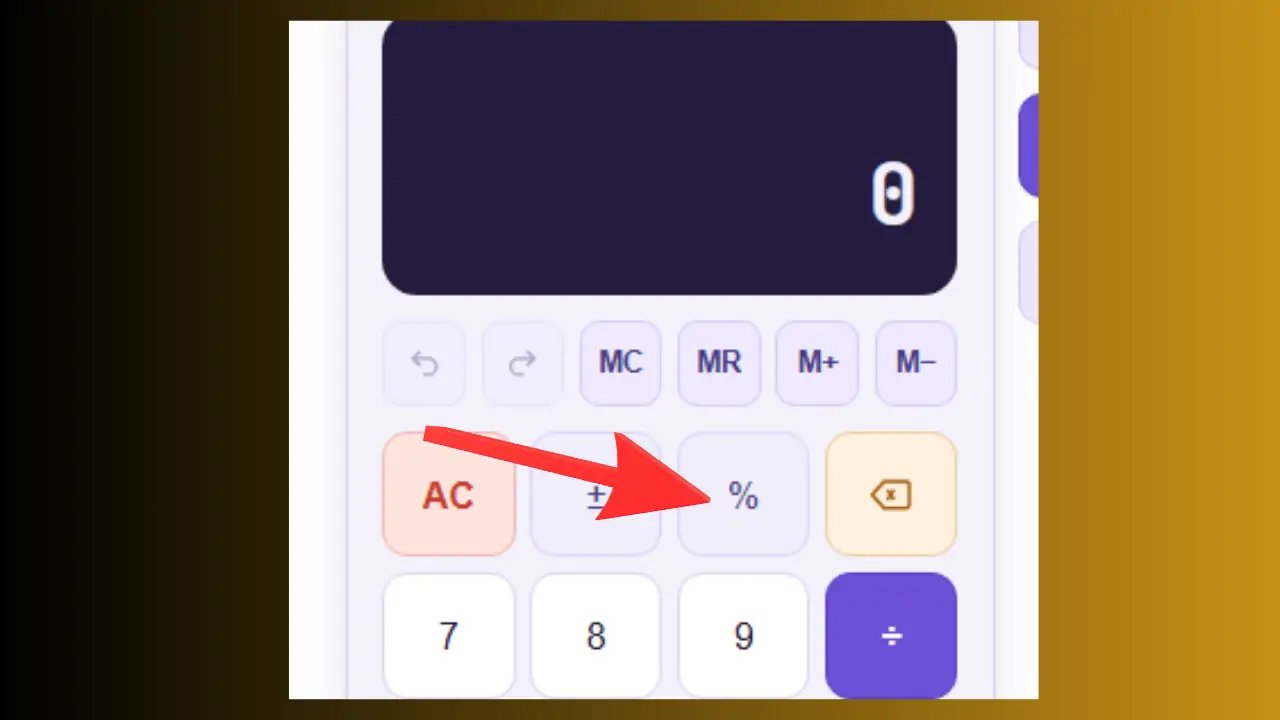
Example 1: 20% discount on an item priced at 150 € → type 150 × 20% → result: 30 € discount.
Example 2: 20% VAT on €500 → result: €100 in VAT.
Used for: Discounts, VAT, interest, commissions, tips.
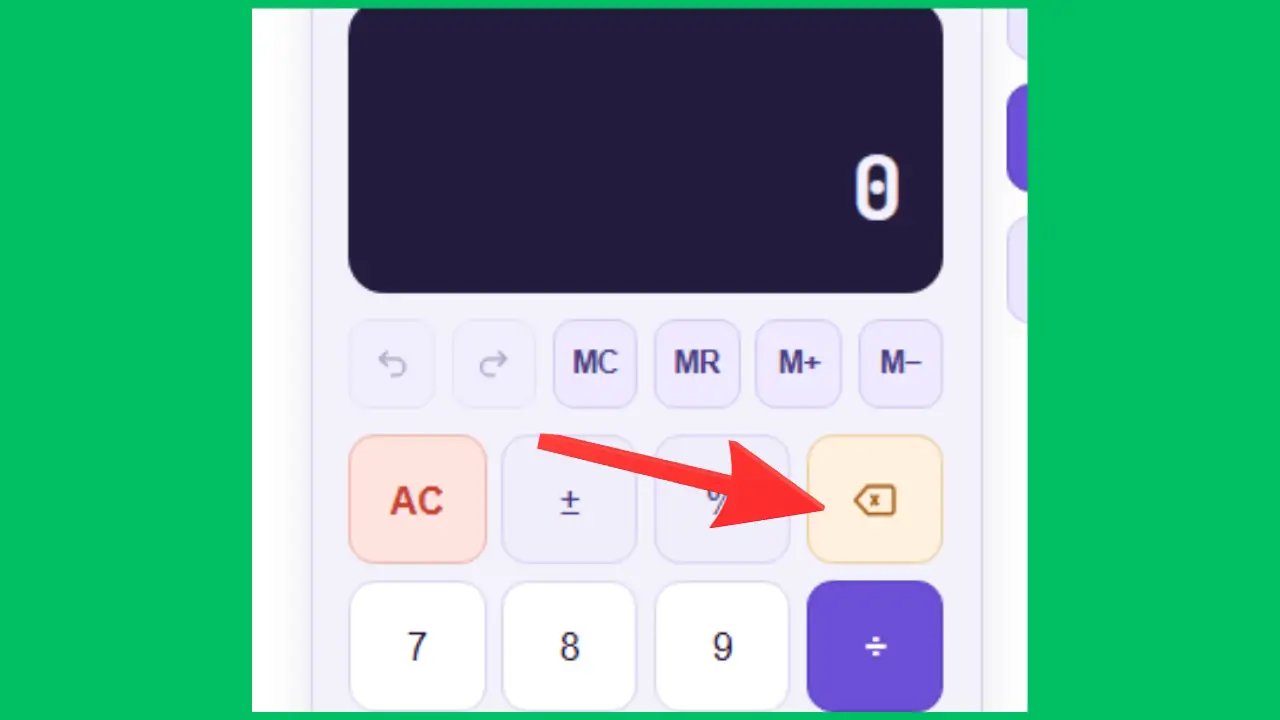
Example: You meant to type 258 but accidentally typed 2589 → press ← once → the screen now displays 258.
Used for: Correcting only the last digit without starting over.
Example: To enter 786, press 7, then 8, then 6.
Used for: Entering any whole number into a calculation.
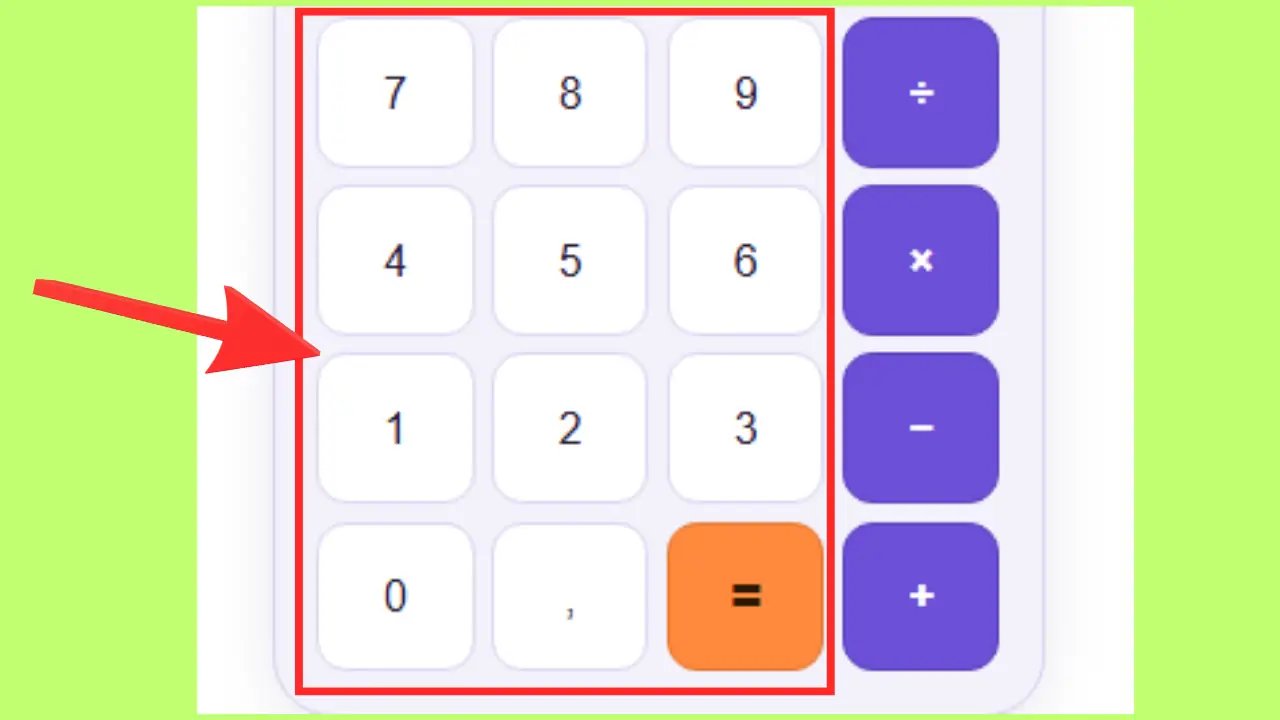
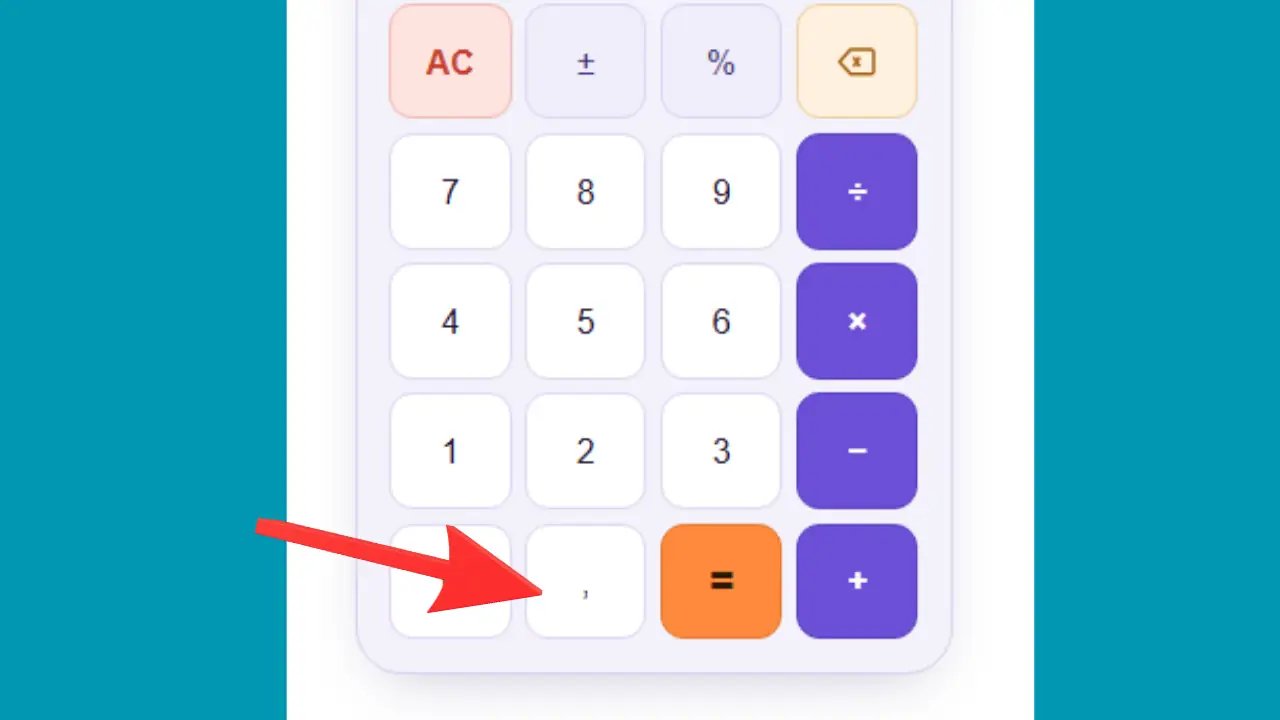
Example: To calculate 12.5 + 1.5 → type 12.5, then +, then 1.5, then = → result: 14.
Used for: Prices (e.g., 3.99 €), measurements (e.g., 1.75 m), precise quantities.
Mathematical Operations
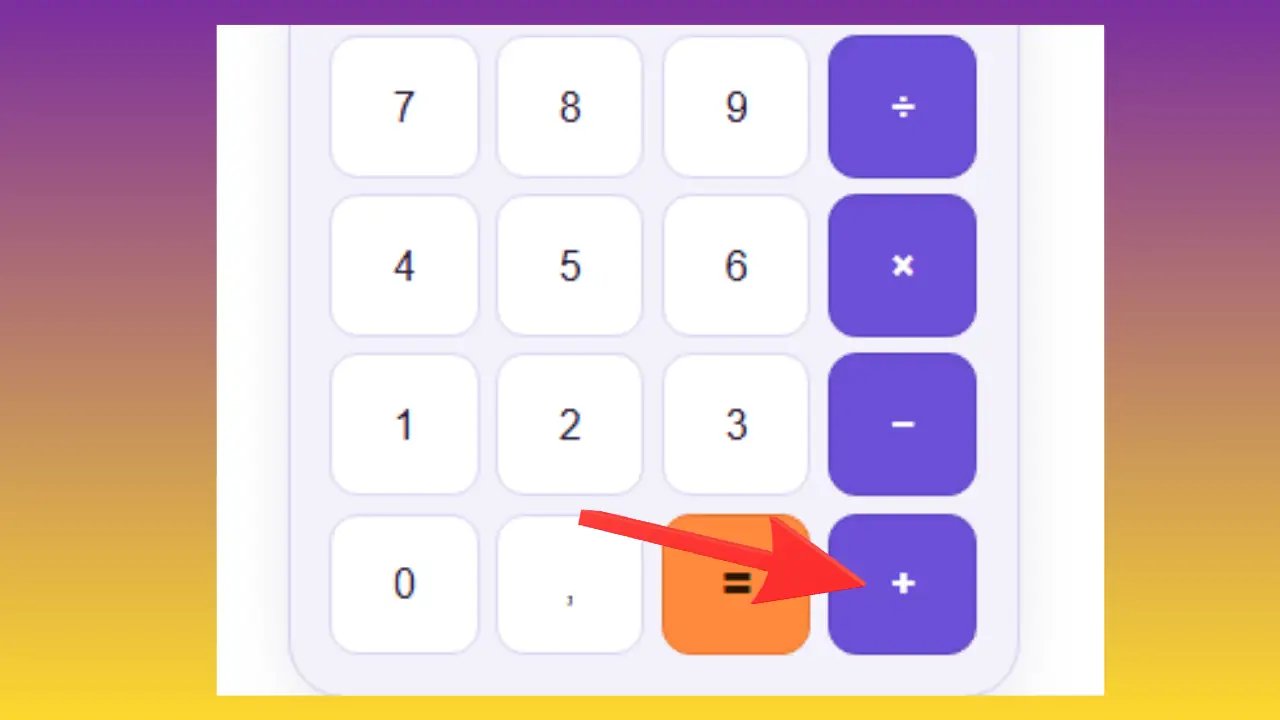
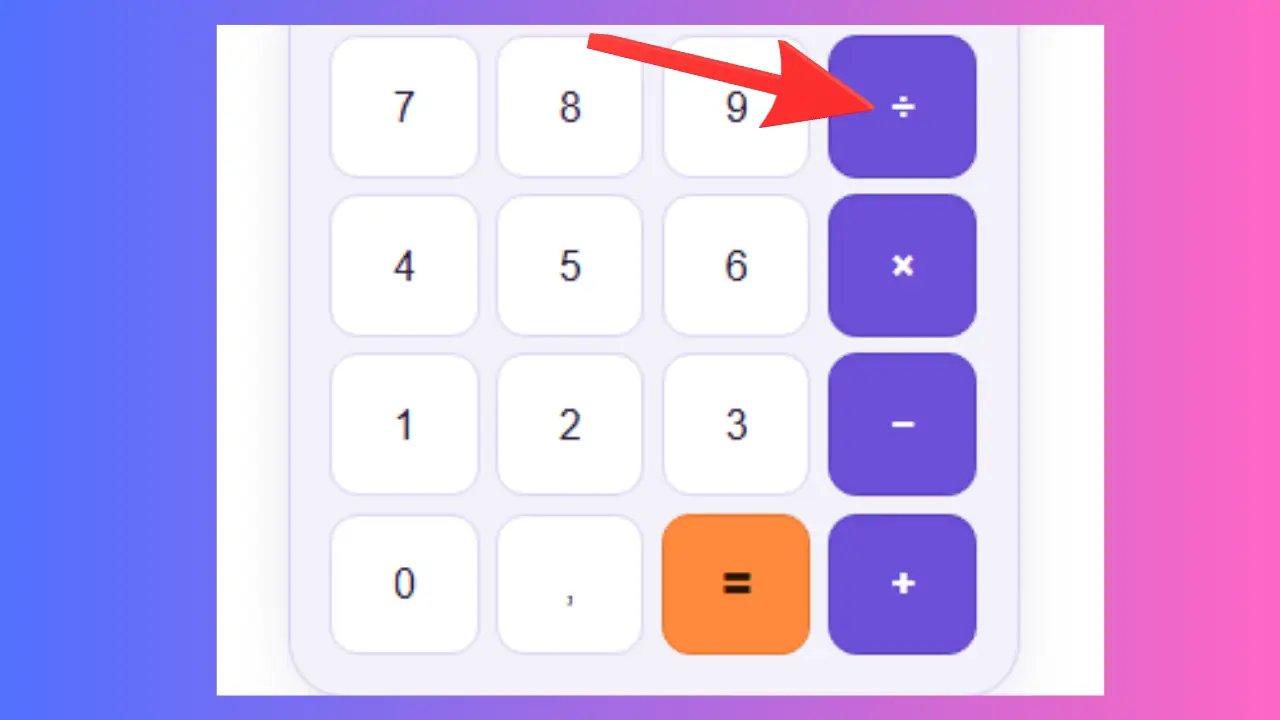
These six buttons cover all the basic mathematical operations. They are always used between two numbers: enter the first number, select the operation, enter the second number, then press =.
Example: You bought one item for 35 € and another for 48 € → type 35 + 48 = → result: 83 €.
Used for: Totaling expenses, adding quantities, calculating a budget.
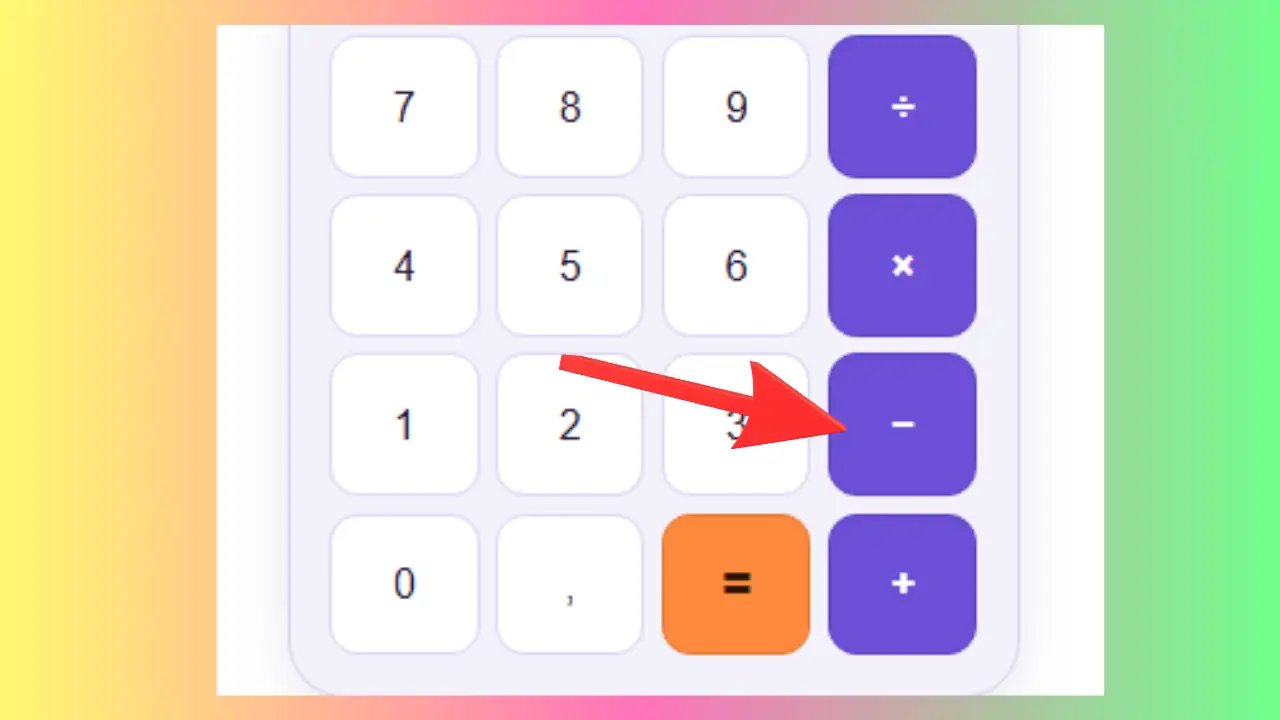
Example: You have 200 € in your pocket and you spend 75 € → type 200 − 75 = → result: 125 € remaining.
Used for: Calculating a remainder, savings, a loss, or an account balance.
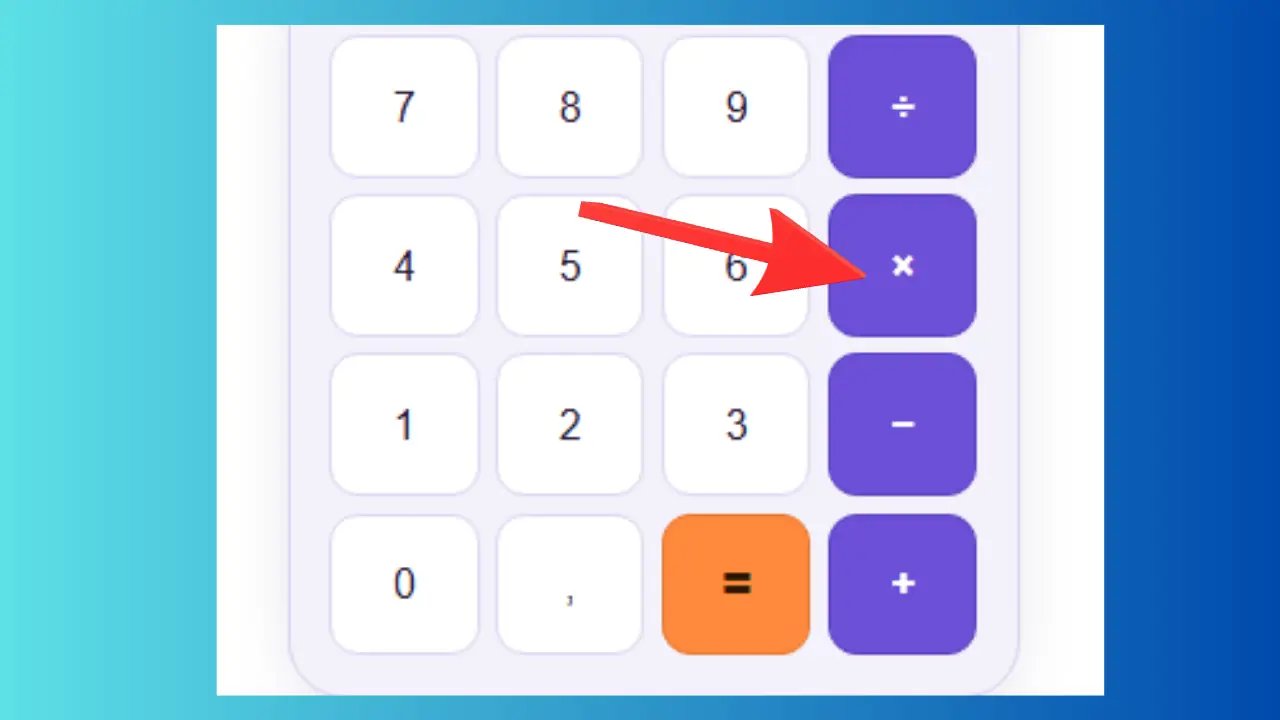
Example: You buy 6 bottles at €2.50 each → type 6 × 2.5 = → result: €15.
Used for: Calculating a total based on a quantity, an area (length × width), or an hourly wage.
Example: A restaurant bill of 120 € for 4 people → type 120 ÷ 4 = → result: 30 € per person.
Used for: Dividing a sum, calculating a unit price, converting units.
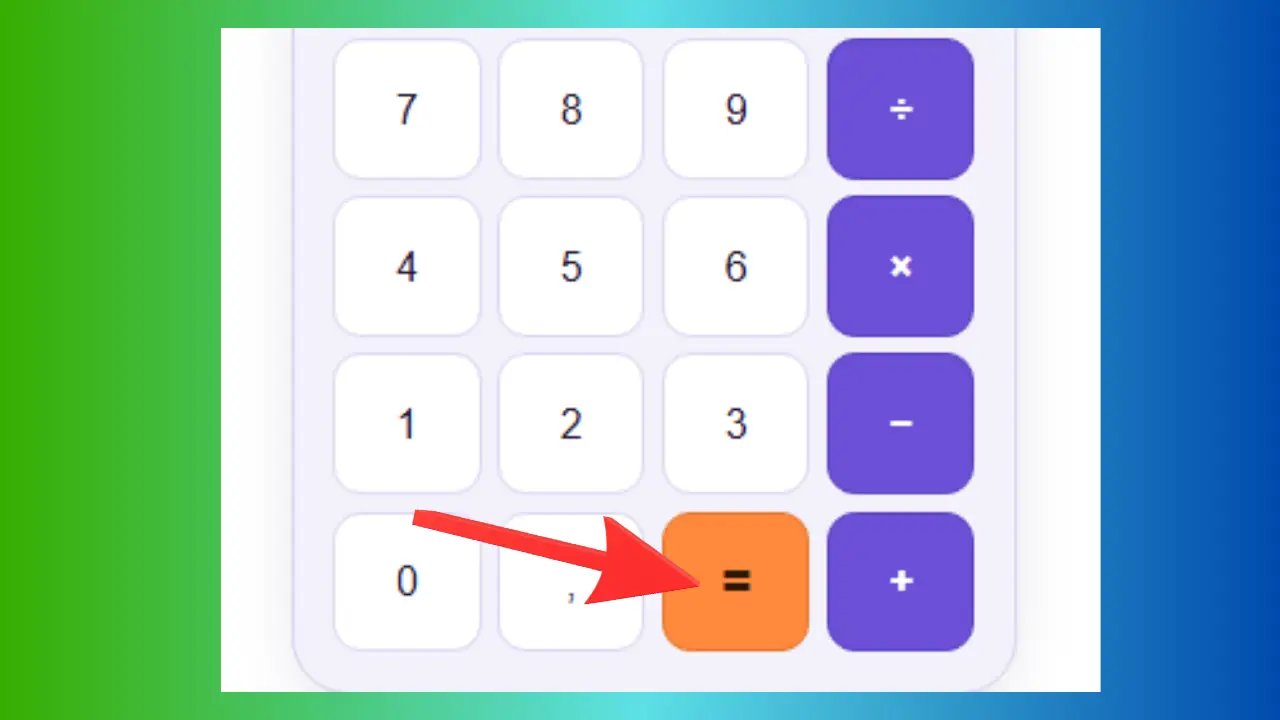
Example: Type 9 + 1, then = → the screen displays 10.
Used for: Finishing each calculation and getting the final answer.
🔬 How to Use the Scientific Calculator?
The scientific calculator is designed for advanced calculations in mathematics, physics, chemistry, and engineering. It includes all the functions of a basic calculator, plus trigonometric and logarithmic functions, powers, roots, and mathematical constants.
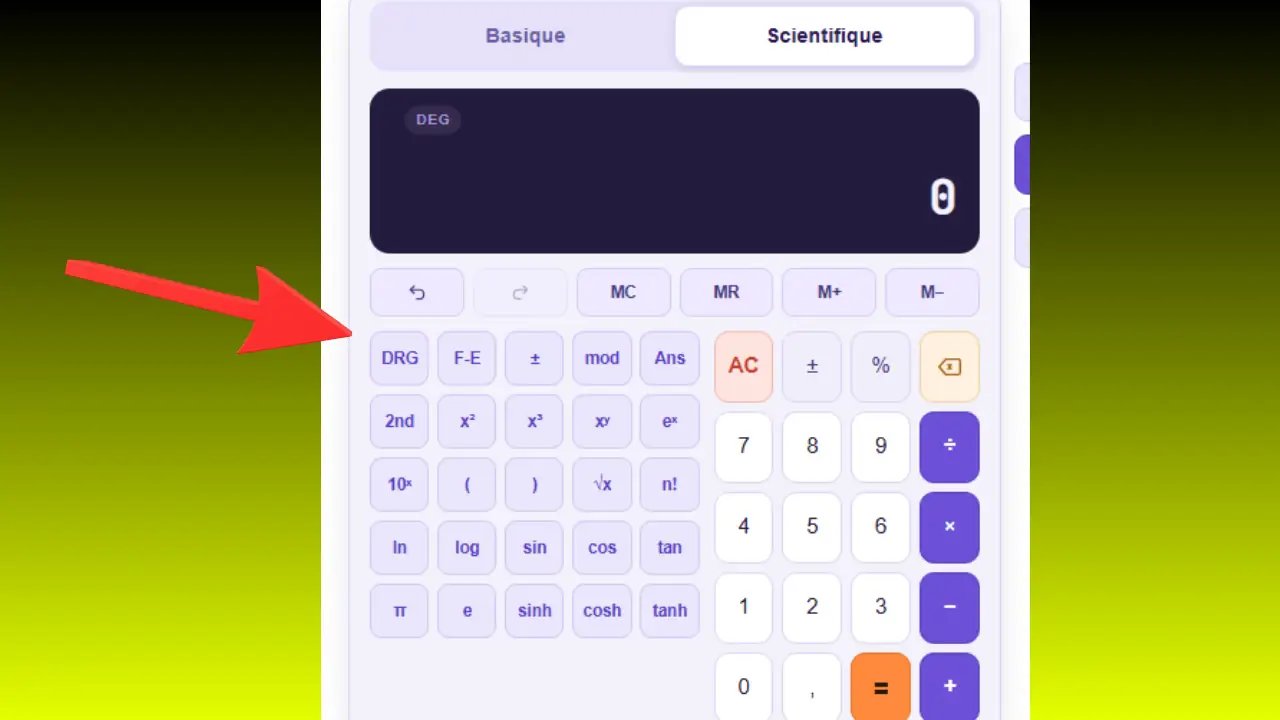
Enable Scientific Mode
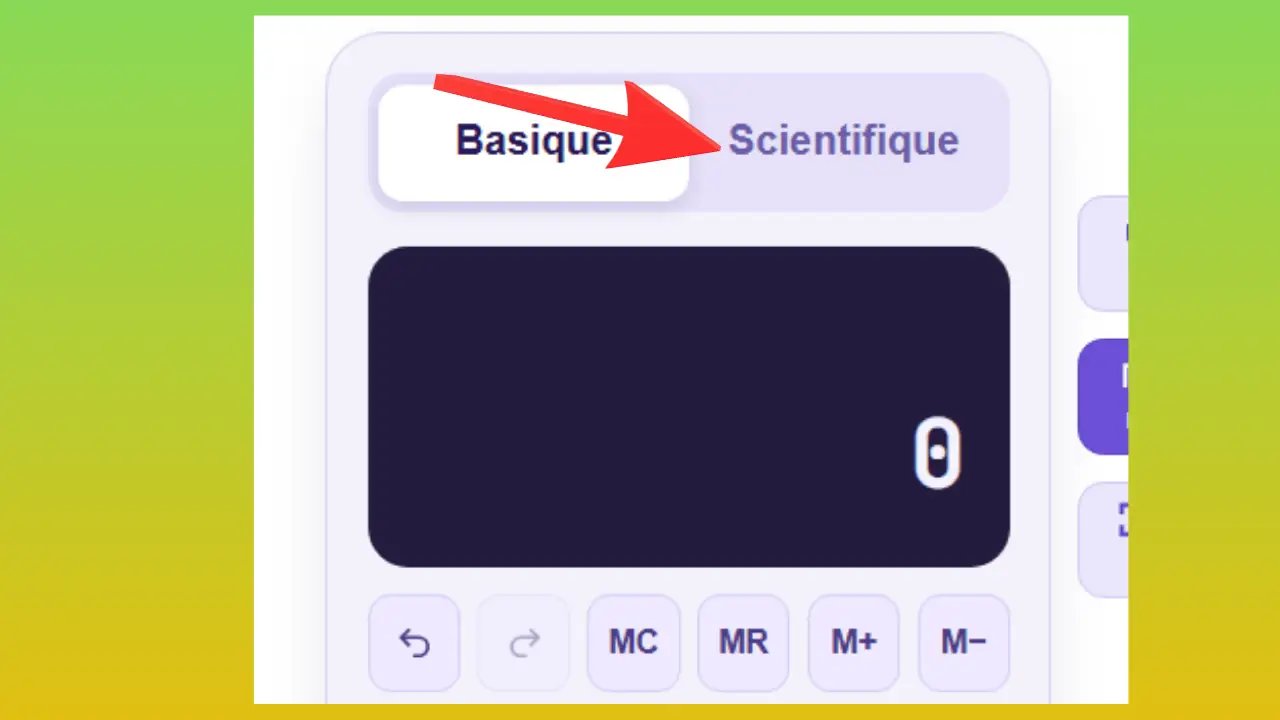
Click the Scientific button at the top of the calculator. The button turns blue and new keys appear. All basic functions remain available.
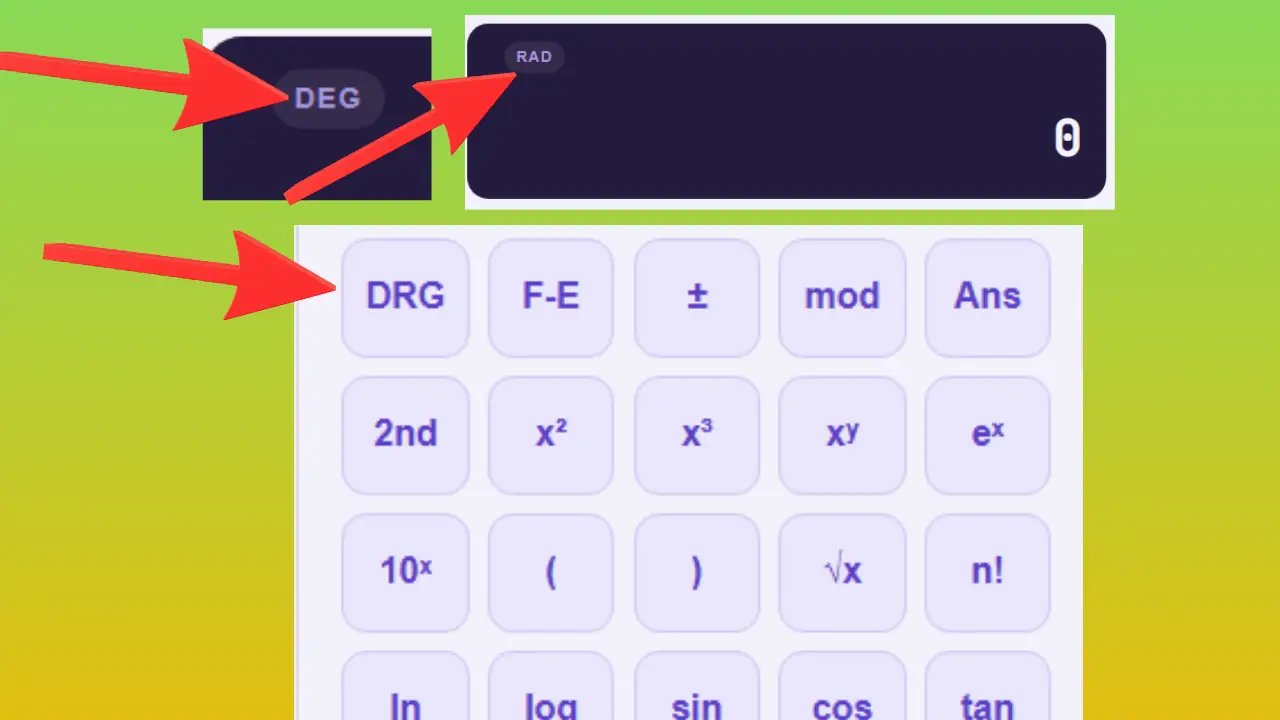
DEG / RAD / GRAD Mode (Angle Units)
This button lets you choose the unit used for trigonometric calculations. With each click, the mode changes in the following order: DEG (degrees) → RAD (radians) → GRAD (grades) → then back to DEG.
DEG — degrees (0° to 360°), the most common system used in middle school, high school, and college.
RAD — radians (0 to 2π), used in mathematical analysis and physics.
GRAD — grades (0 to 400 gr), used in surveying and civil engineering.
Example: sin(90°) = 1 in DEG mode. The same calculation yields a different result in RAD or GRAD mode, since the angle is no longer expressed in the same way.
Used for: All angle calculations—geometry, physics, surveying, and cartography.
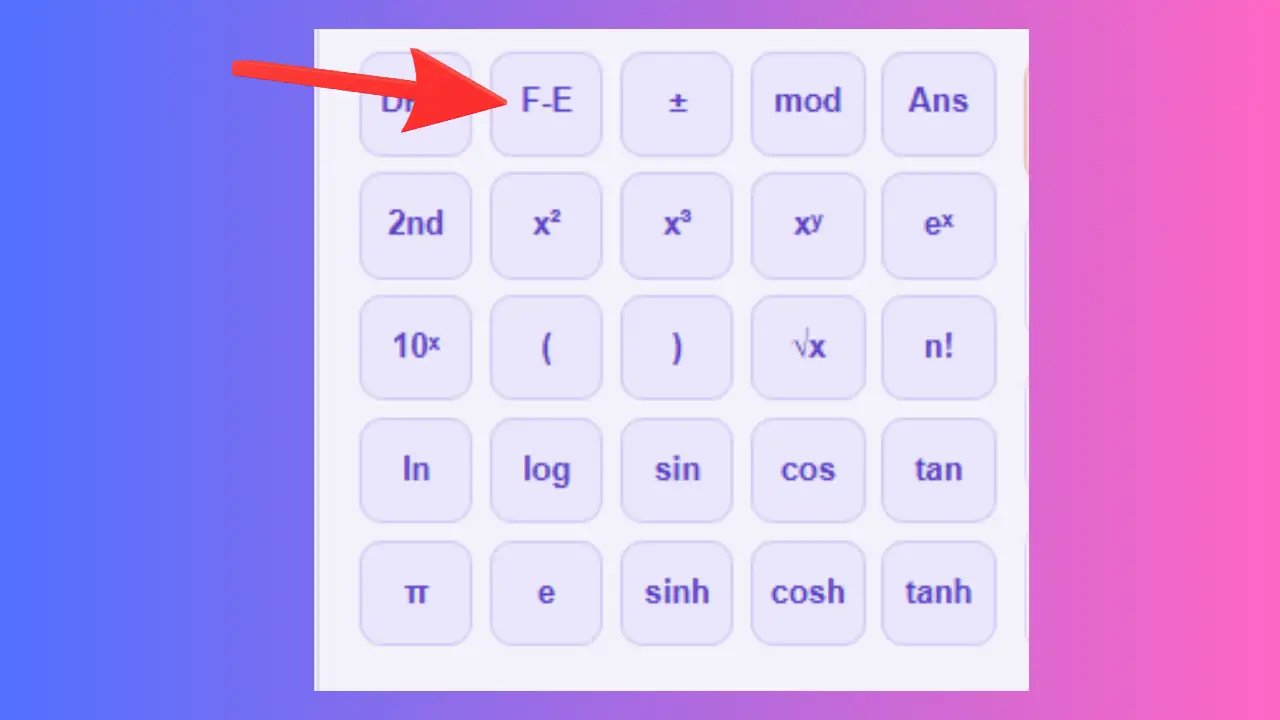
F-E — Scientific Notation
Example: 1,000,000 → 1E+6. 0.000001 → 1E-6.
Used for: Physics, astronomy, chemistry, molecular biology.
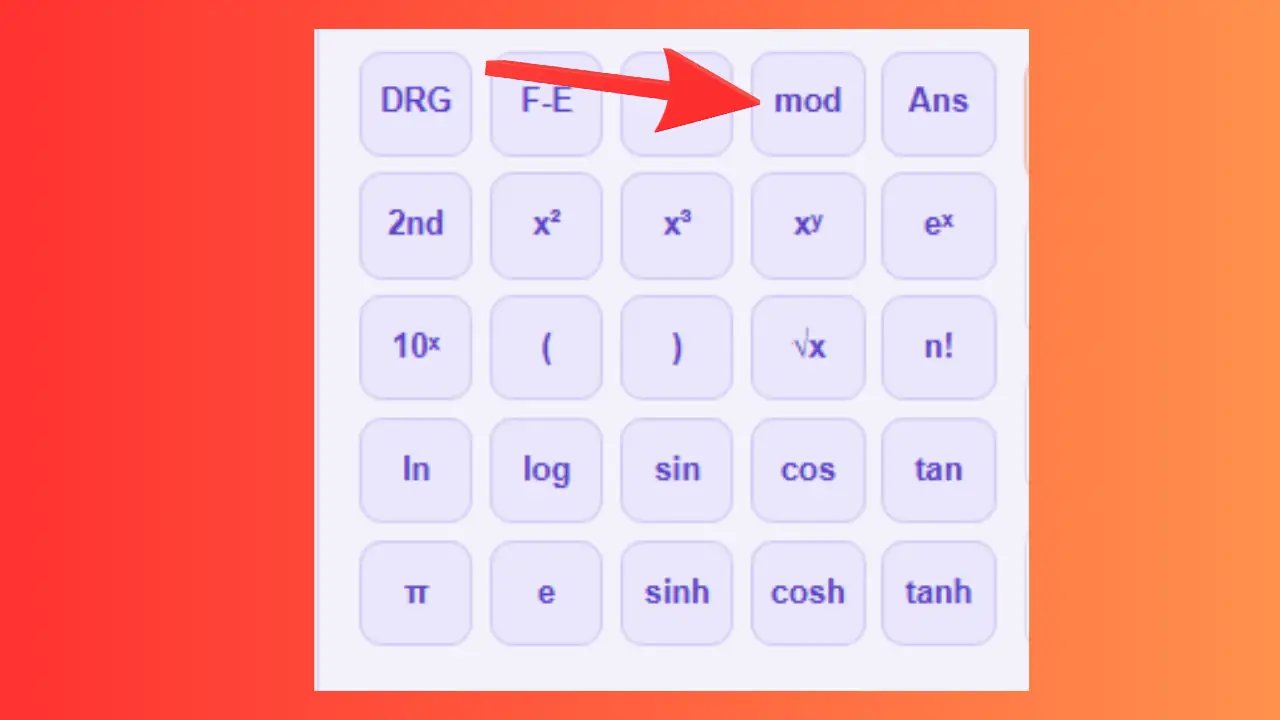
mod — Modulo
Example: 10 mod 3 = 1. 25 mod 4 = 1. The result represents the remainder after division.
Used for: Divisibility, cryptography, programming, cyclic scheduling.
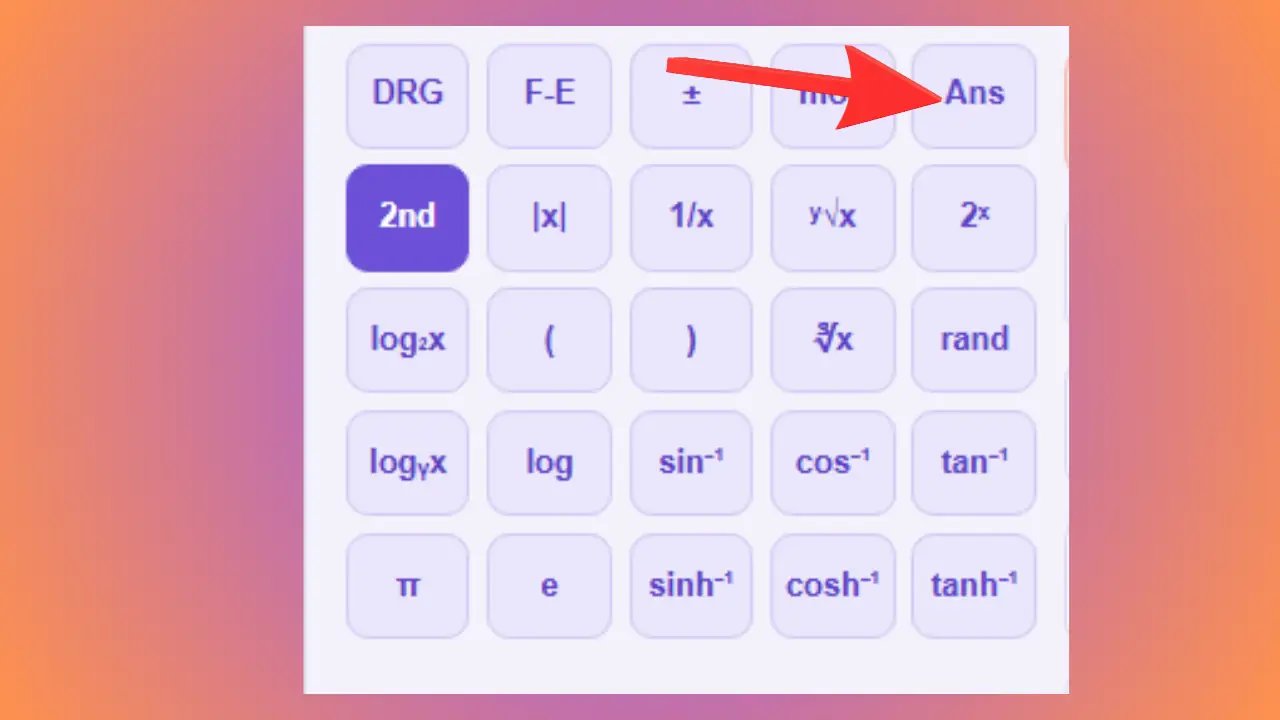
Ans — Last Answer
Example: 5 + 5 = 10, then Ans × 2 = 20.
Used for: Performing a series of calculations that depend on the previous result.
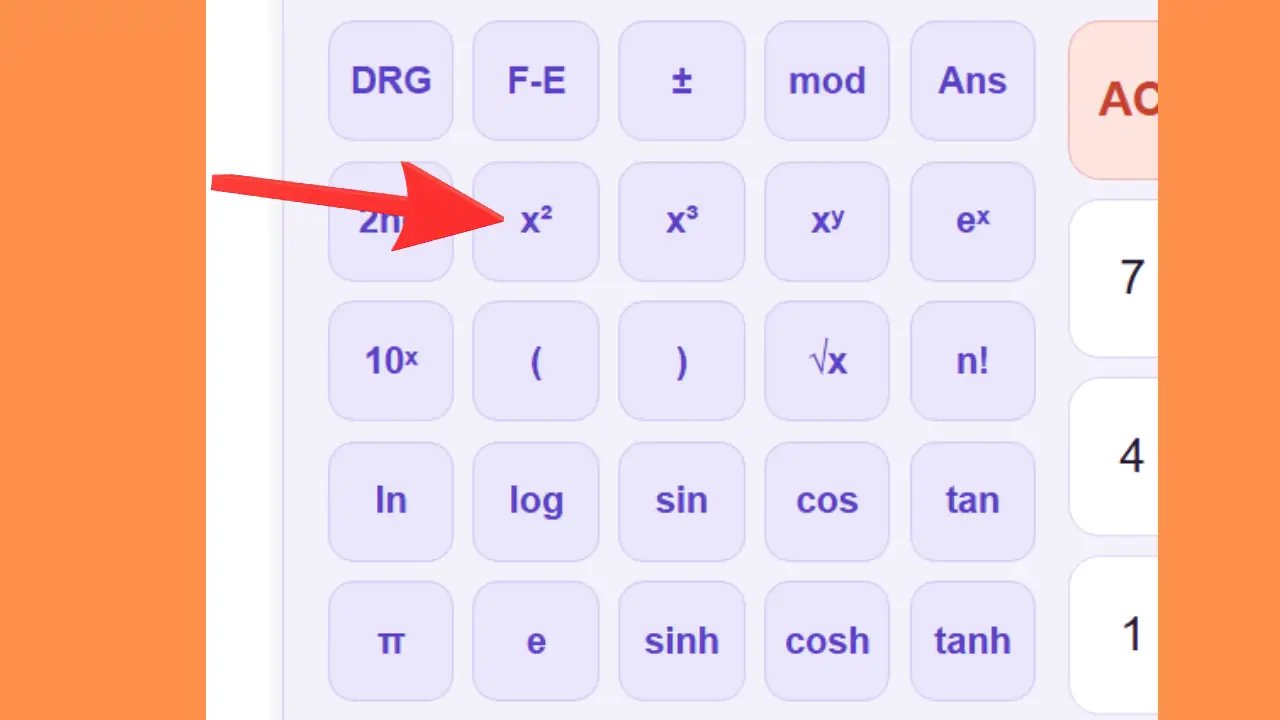
x² — Square
Example: 5² = 5 × 5 = 25. The area of a square with a side length of 5 cm is 25 cm².
Used for: Areas of squares and rectangles, physics formulas (kinetic energy: ½mv²).
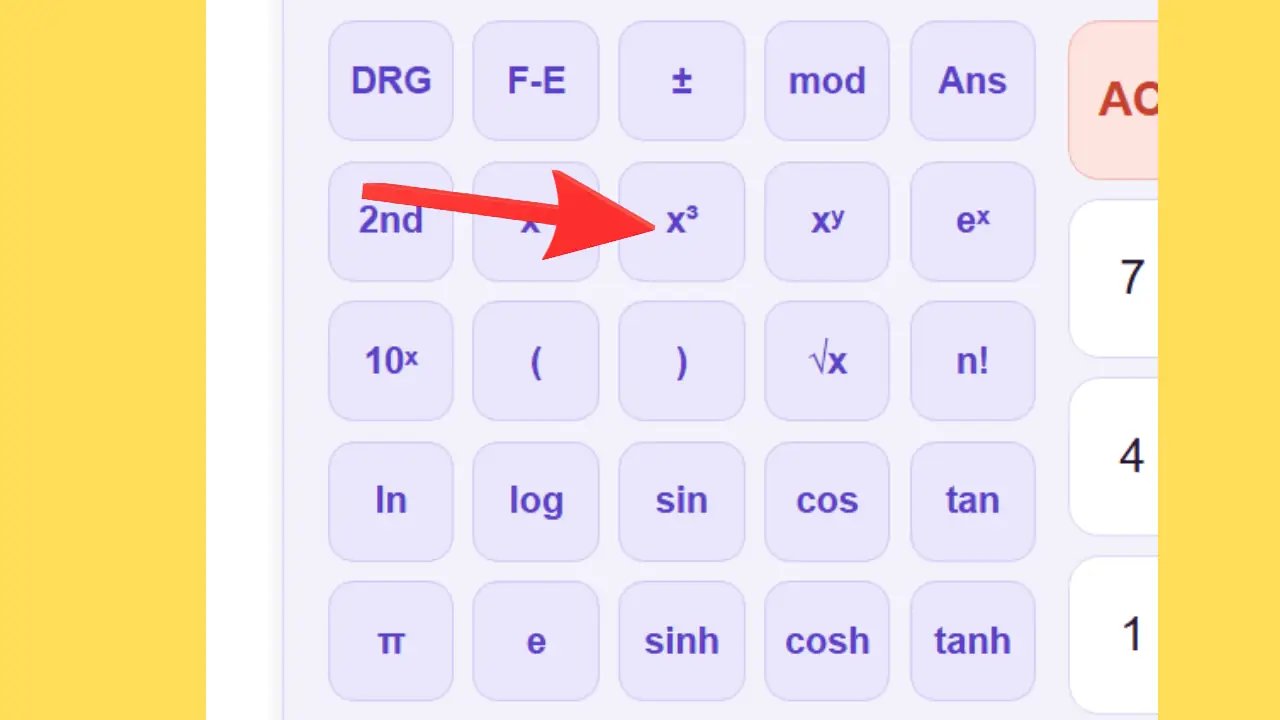
x³ — Cube
Example: 3³ = 3 × 3 × 3 = 27. The volume of a cube with a side length of 3 cm is 27 cm³.
Used for: Volumes of cubes, capacity calculations, formulas in chemistry and physics.
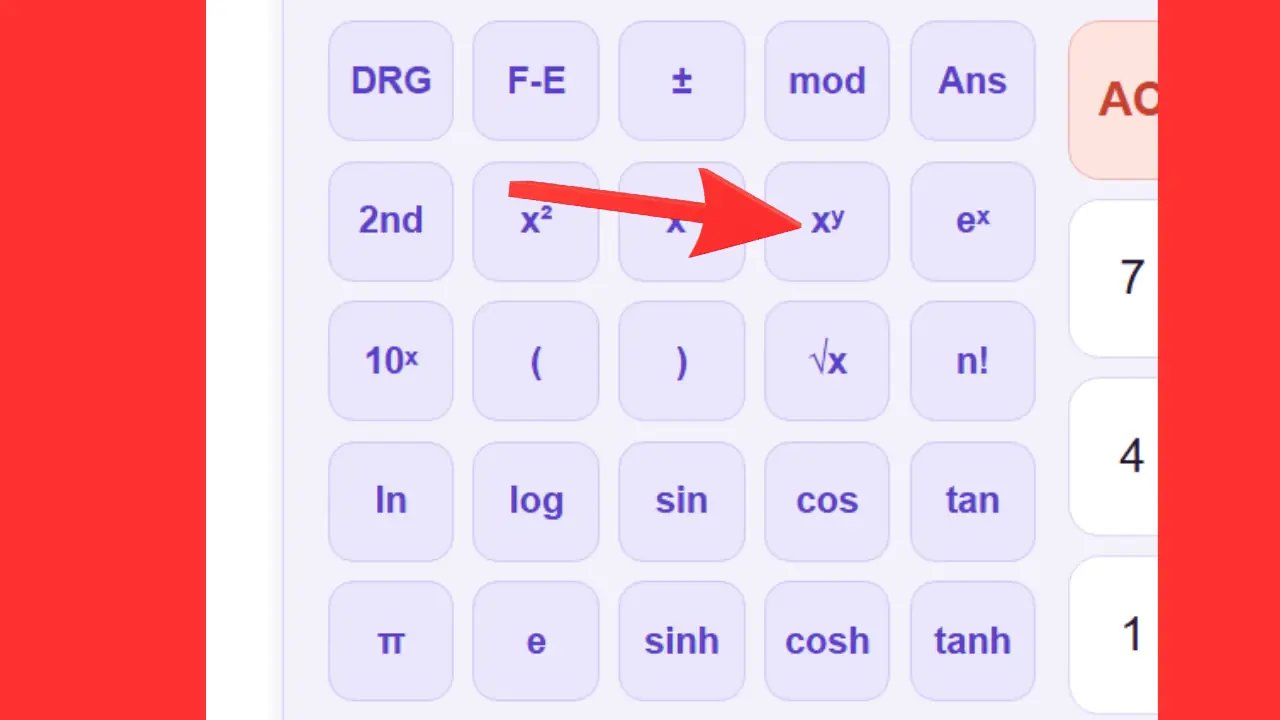
xʸ — Custom power
Example: 2 xʸ 10 = 2¹⁰ = 1024. Useful in computer science and for calculating compound interest.
Used for: Exponential growth, bank interest, computer science calculations.
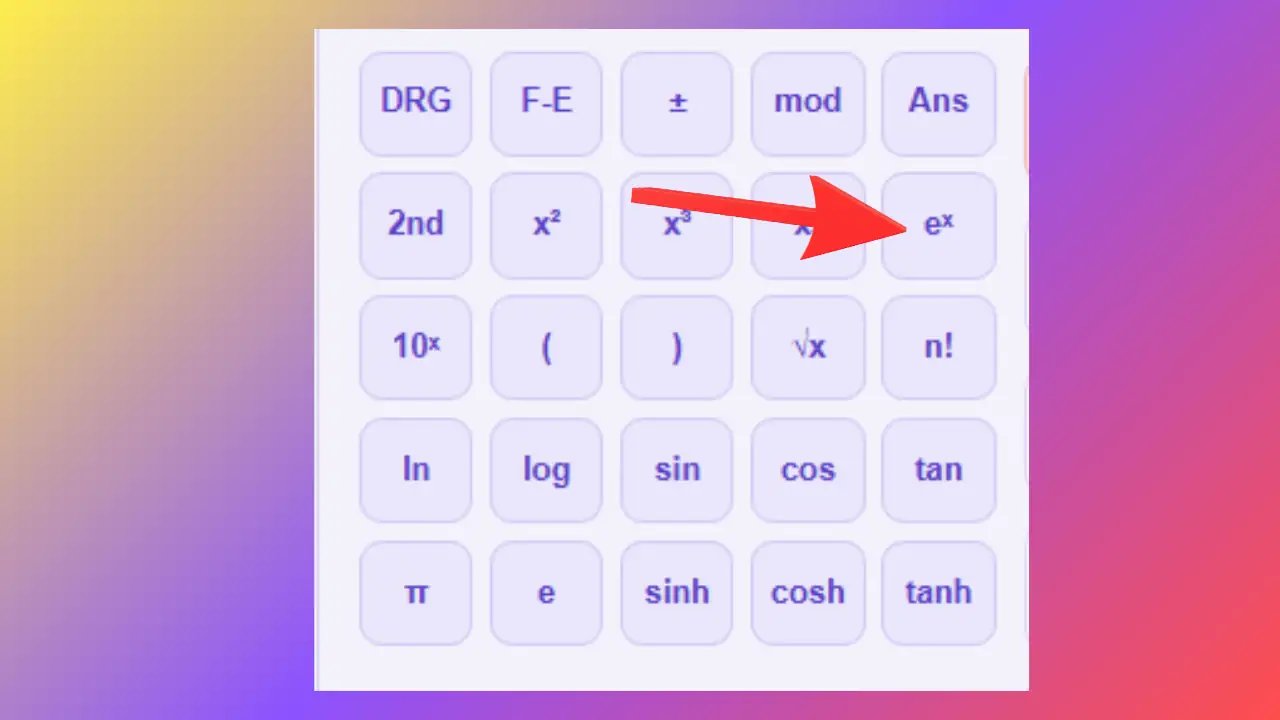
eˣ — Exponential
Example: e² ≈ 7.389. e³ ≈ 20.086.
Used for: Mathematics, statistics, and finance—calculations involving continuous growth.
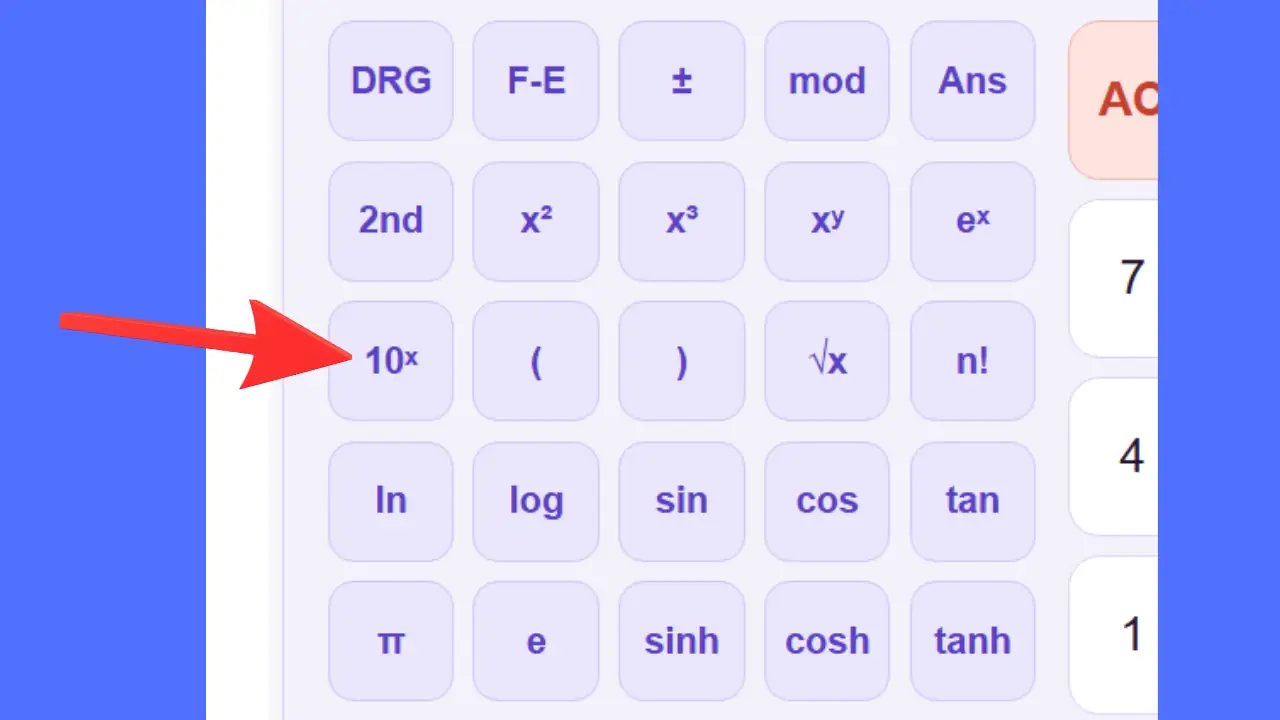
10ˣ — Power of 10
Example: 10³ = 1,000. The speed of light is approximately 3 × 10⁸ m/s.
Used for: Physics, chemistry, astronomy, scientific notation.
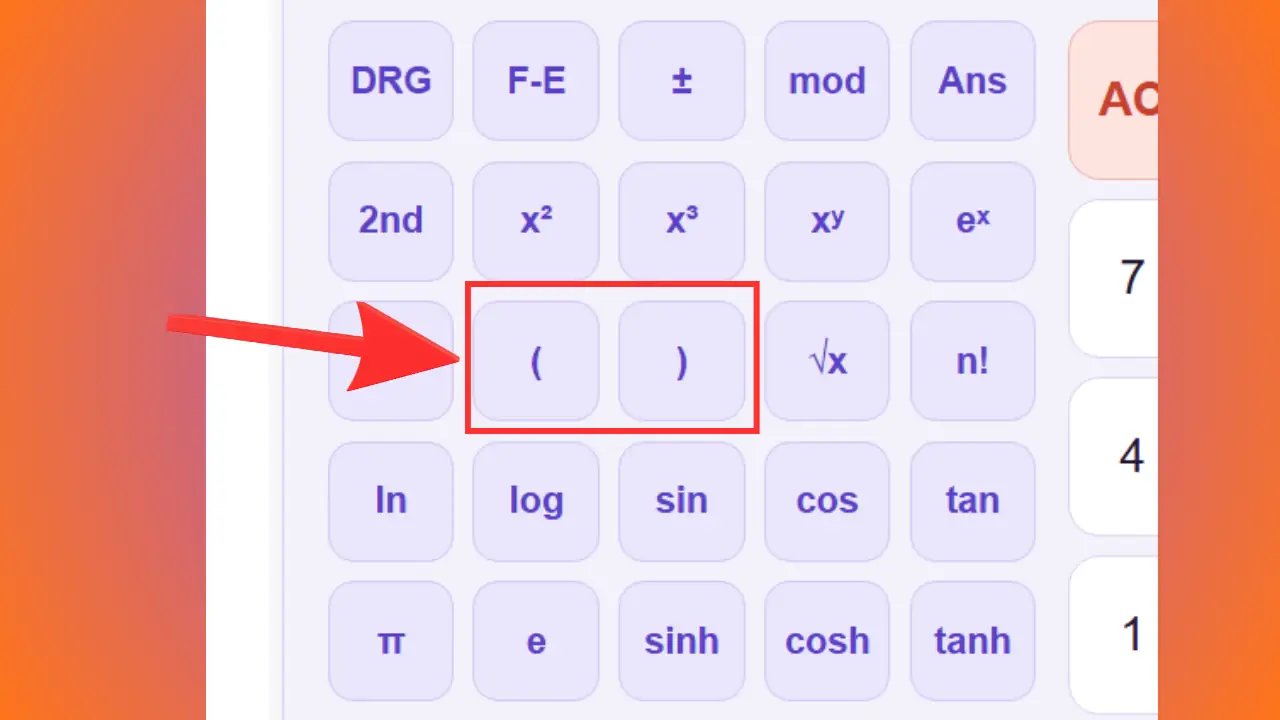
( ) — Parentheses
Example: 5 + 3 × 2 = 11. (5 + 3) × 2 = 16.
Used for: Any complex formula where the order of calculation is important.
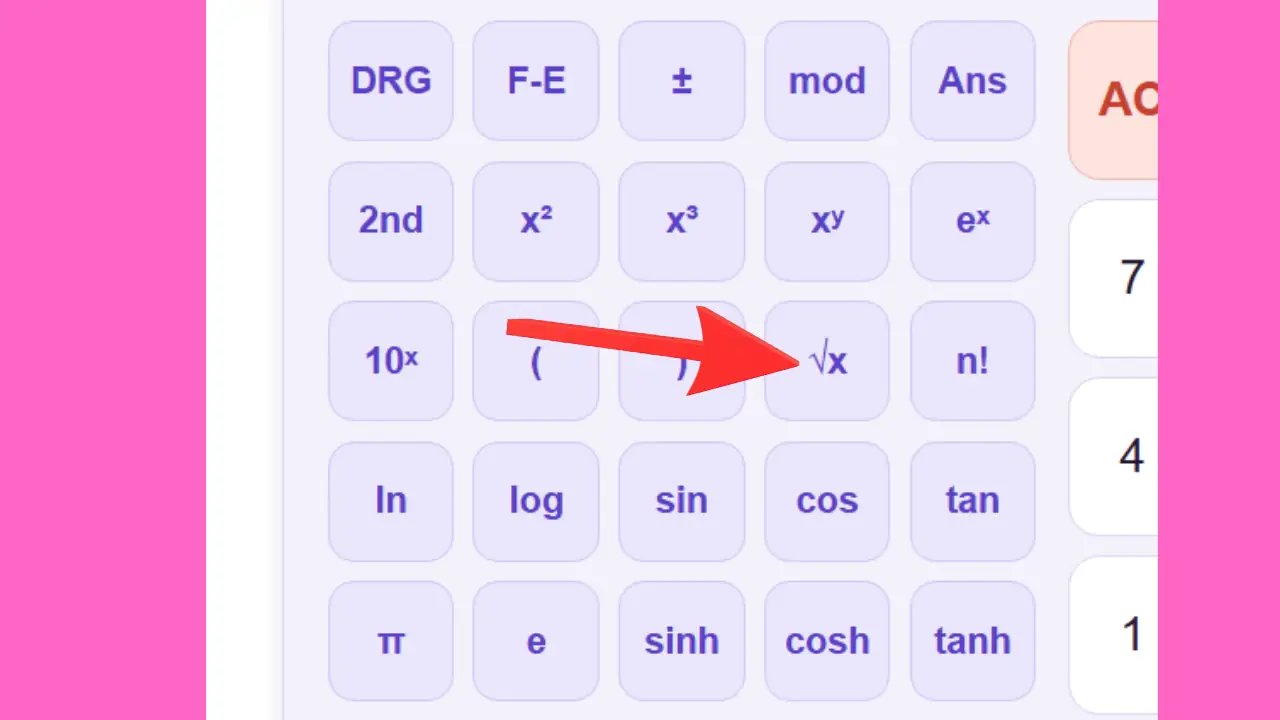
√x — Square root
Example: √25 = 5, because 5 × 5 = 25. A square room measuring 36 m² has sides of √36 = 6 m.
Used for: Geometry, the Pythagorean theorem, statistics (standard deviation).
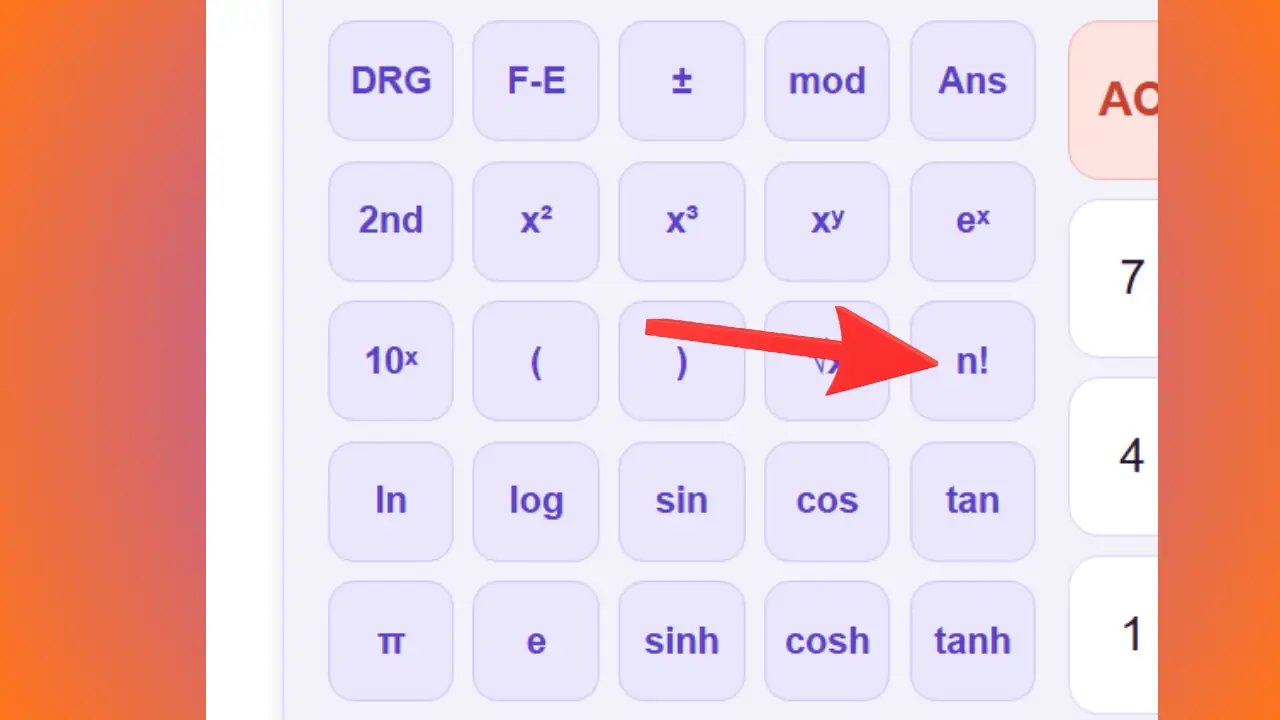
n! — Factorial
Example: 5! = 5 × 4 × 3 × 2 × 1 = 120.
Used for: Probability, combinatorics, arrangements, permutations.
ln — Natural logarithm
Example: ln(e) = 1. ln(1) = 0.
Used for: Bacterial growth, radioactive decay, financial calculations, thermodynamics.
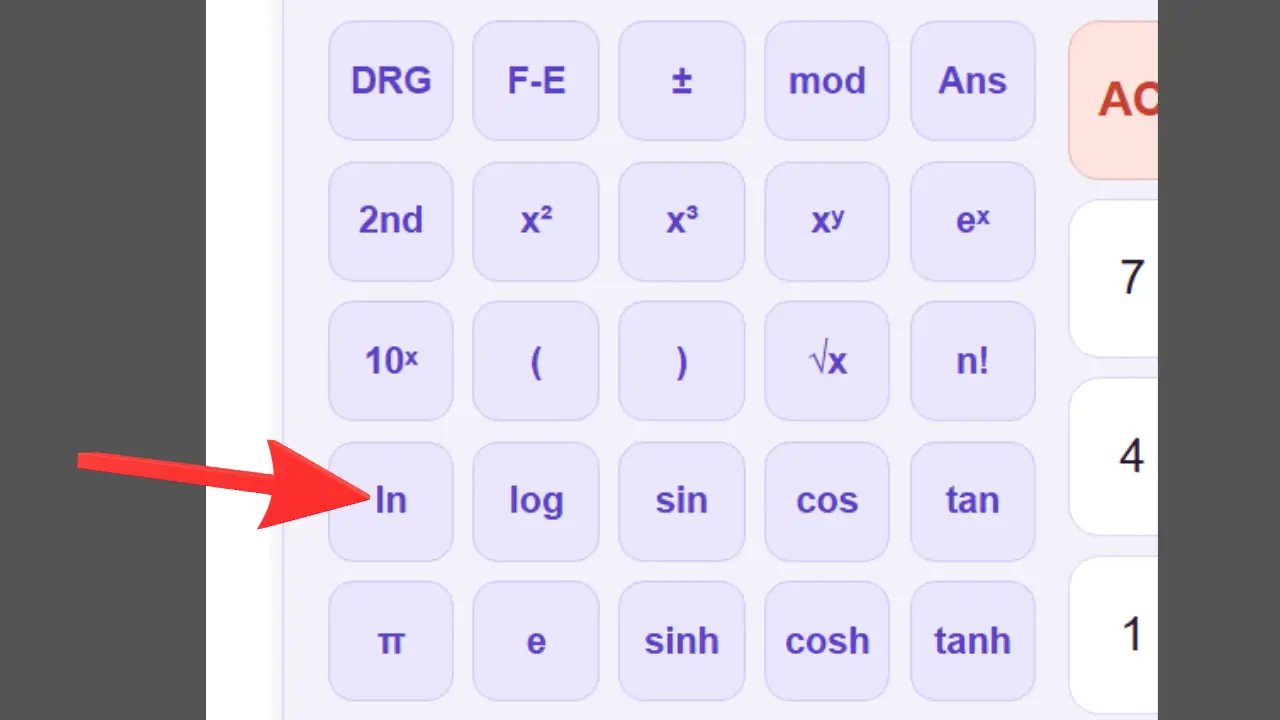
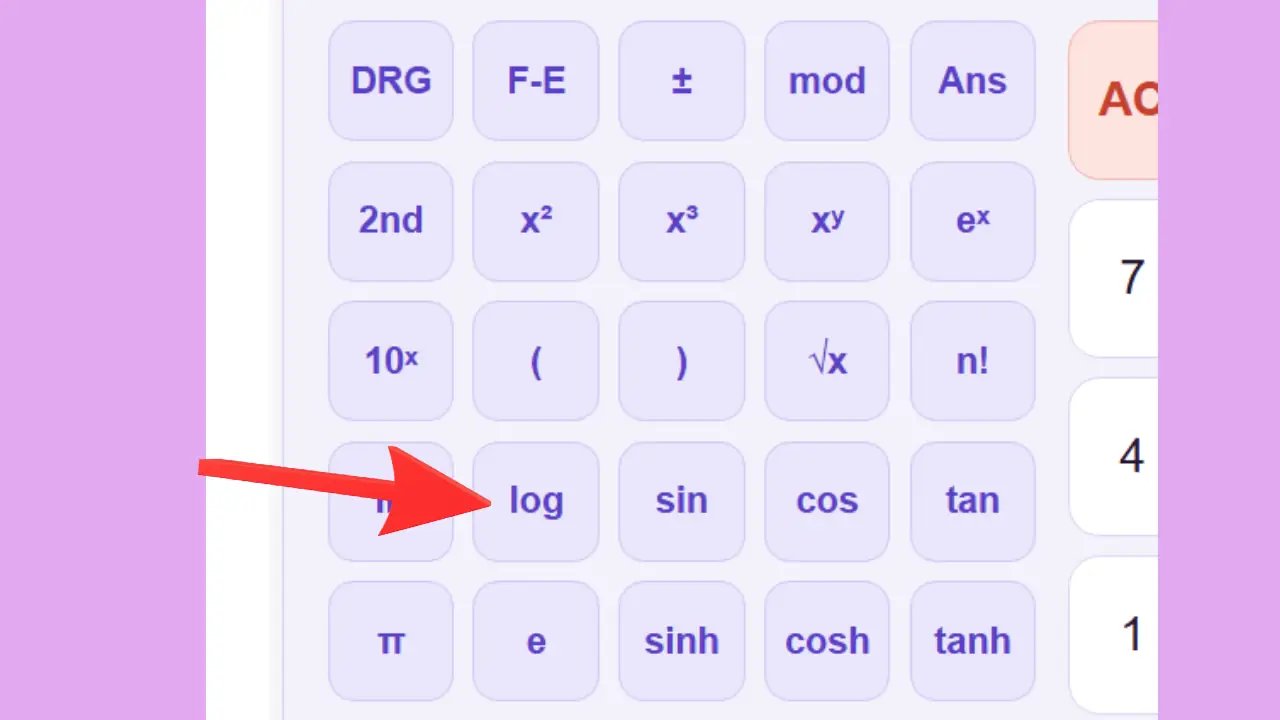
log — Logarithm to base 10
Example: log(100) = 2, because 10² = 100. log(1000) = 3, because 10³ = 1000.
Used for: Sound measurement (decibels), the Richter scale, pH in chemistry, acoustics.
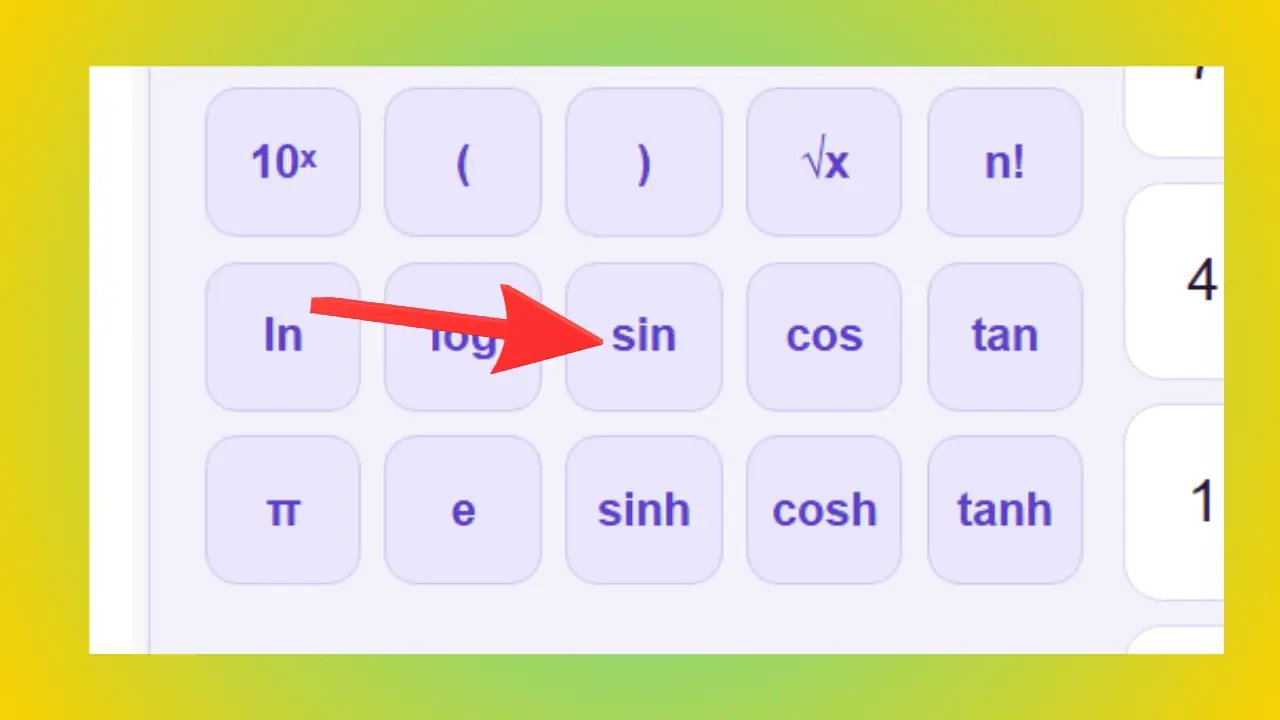
sin — Sine
Example: sin(30°) = 0.5 — this means that in a triangle with a 30° angle, the opposite side is half the length of the hypotenuse.
Used for: Calculations of height, slope, sound waves, and electrical signals.
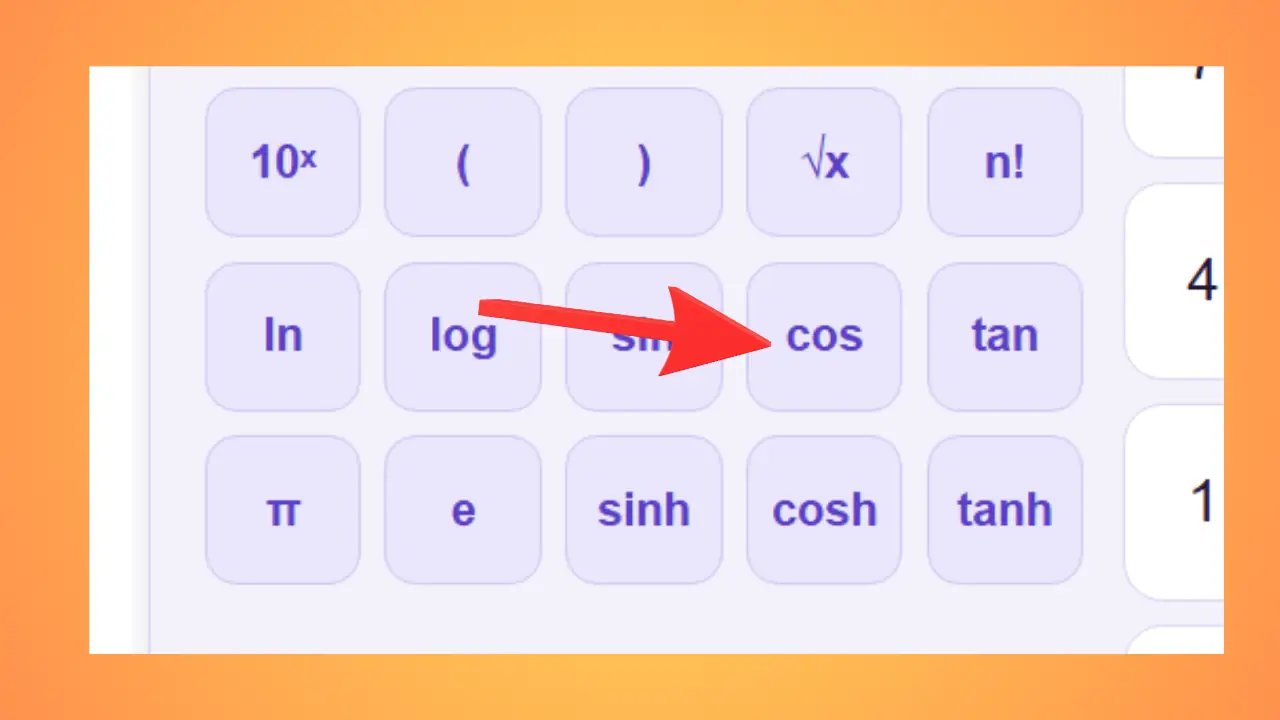
cos — Cosine
Example: cos(60°) = 0.5 — in a triangle with a 60° angle, the adjacent side is half the length of the hypotenuse.
Used for: Calculations involving horizontal distance, projection, navigation, and architecture.
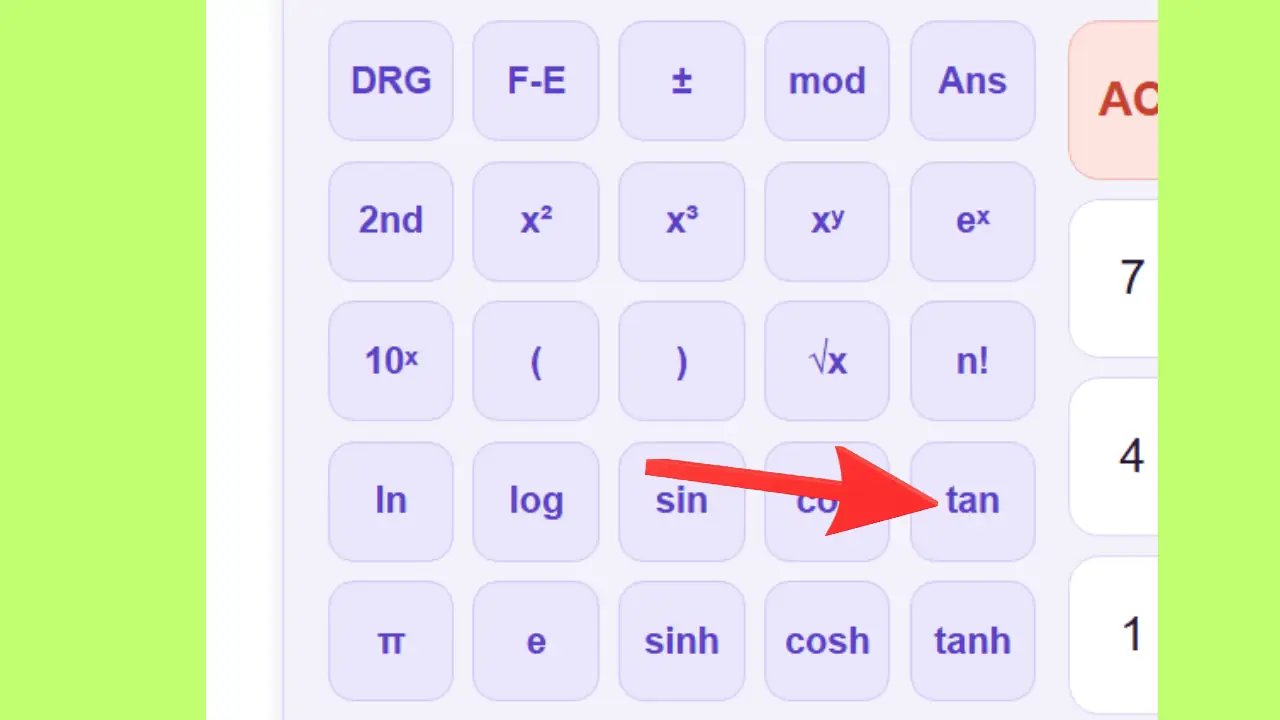
tan — Tangent
Example: tan(45°) = 1, tan(0°) = 0 — at 45°, the two sides are equal.
Used for: Calculating a slope, a roof pitch, and an angle of ascent.
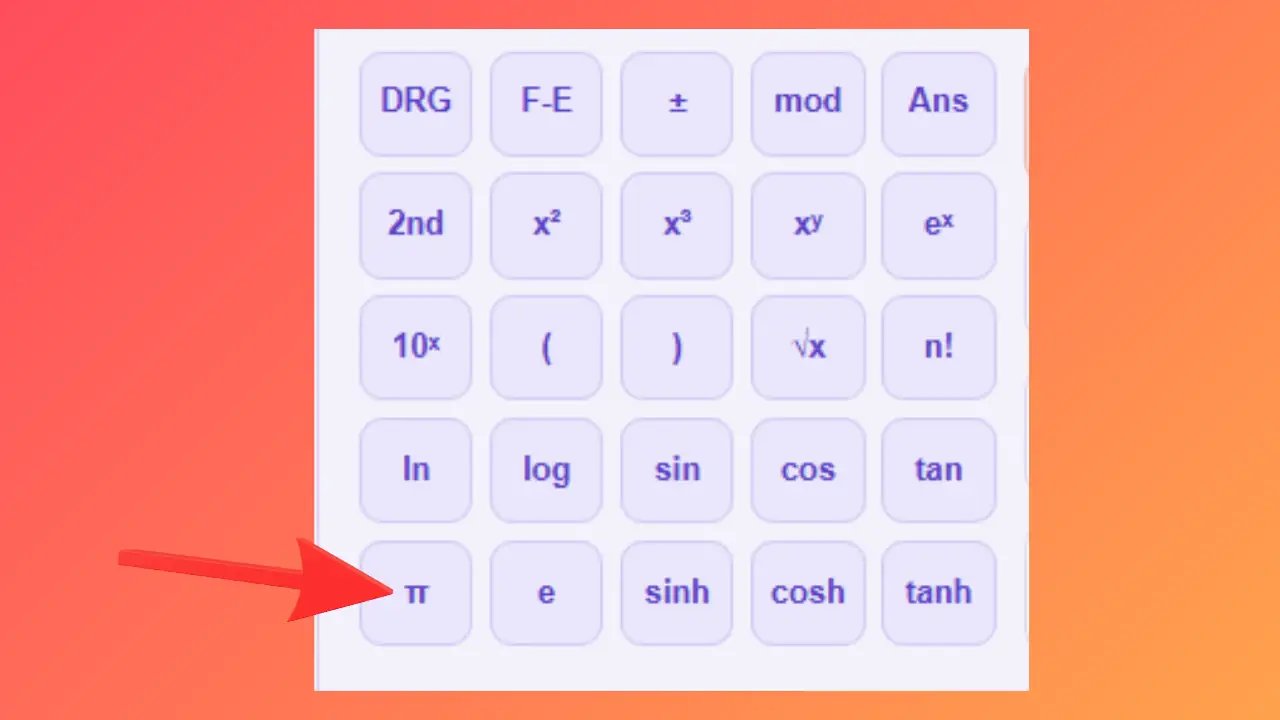
π — Pi
Example: Area of a circle with radius 5: π × 5² = 78.54.
Used for: Calculations involving circles, cylinders, spheres, waves, and oscillations.
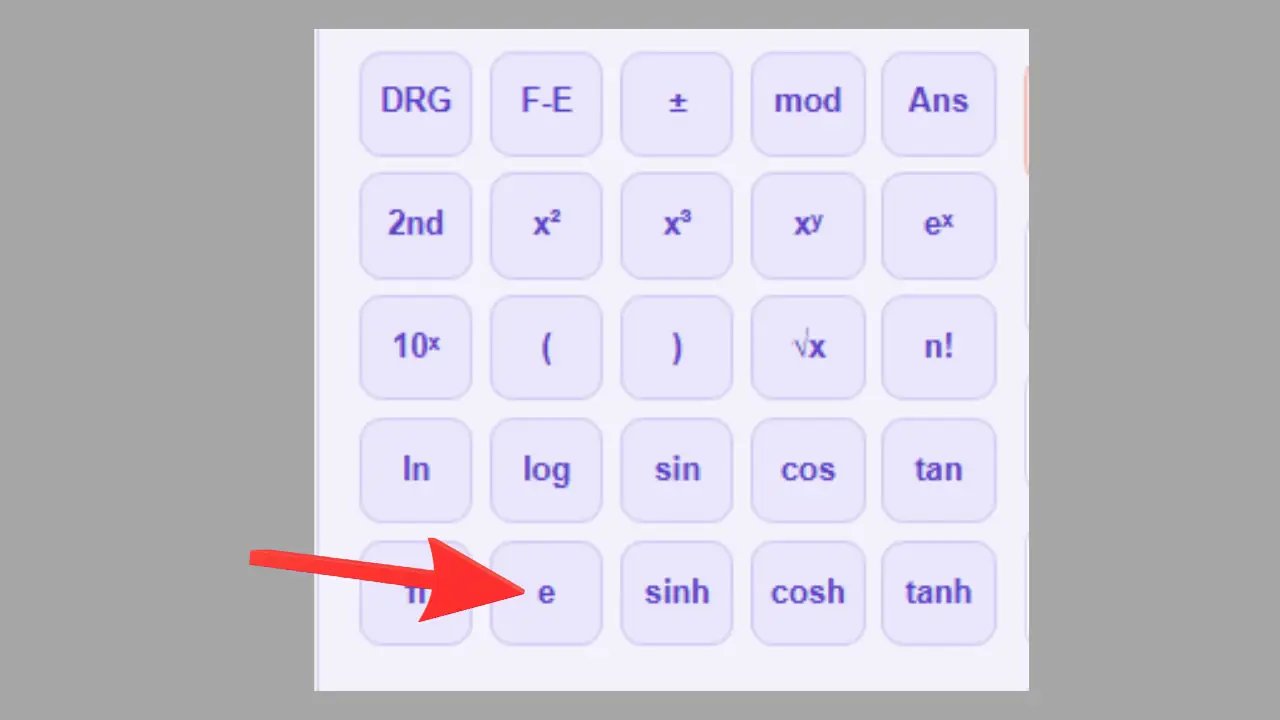
e — Euler's number
Example: Principal invested at 100% continuous interest over 1 year: 1 × e ≈ 2.718 times the initial principal.
Used for: Exponential growth, biology, finance, wave physics.
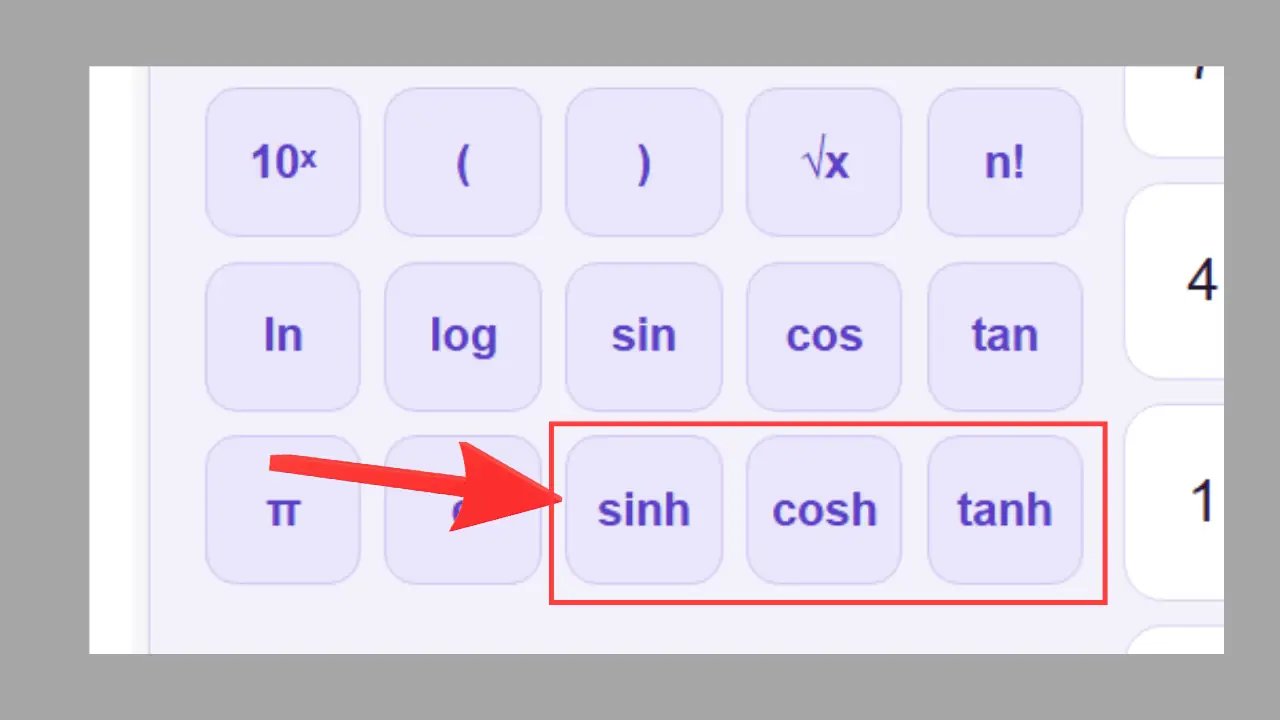
sinh, cosh, tanh — Hyperbolic functions
Example: sinh(1) ≈ 1.175.
Used for: Physics, engineering, the shape of suspended cables (chains).
Example: cosh(1) ≈ 1.543.
Used for: Physics, engineering, thermodynamics.
Example: tanh(1) ≈ 0.762.
Used for: Statistics, neural networks, engineering sciences.
2nd Button — Advanced Functions
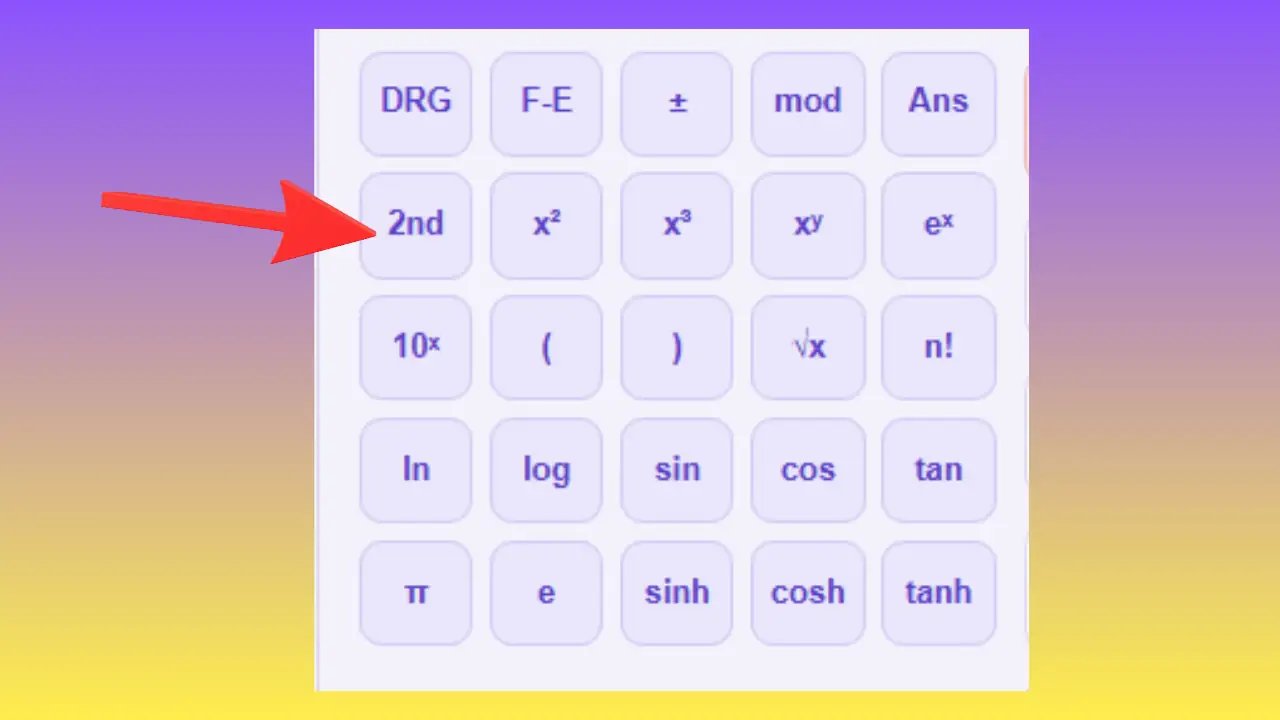
The 2nd button activates the secondary and advanced functions of the scientific calculator. After pressing this key, new functions become available in place of the usual functions: absolute value, inverse functions, advanced roots, specialized logarithms, inverse trigonometric functions, and inverse hyperbolic functions.
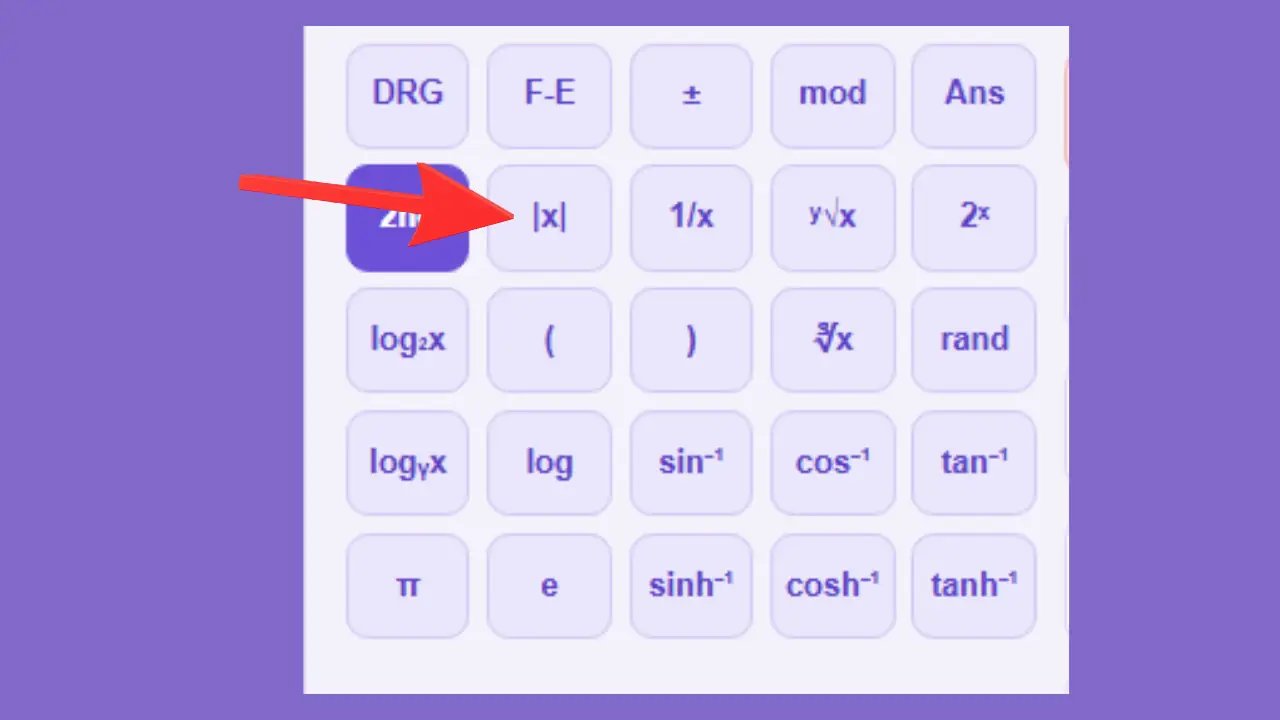
|x| — Absolute value
Example: |-5| = 5.
Used for: Distances, deviations, error calculations.
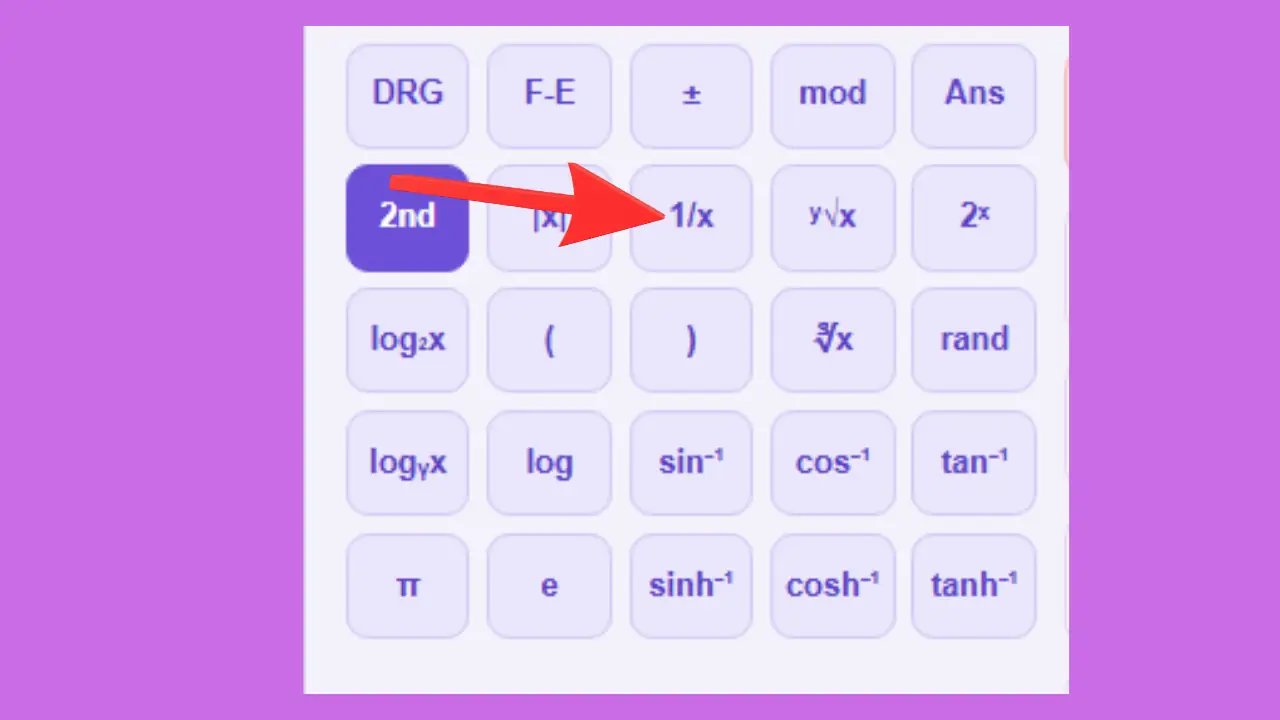
1/x — Inverse of a number
Example: 1/4 = 0.25.
Used for: Electronics (parallel resistors), optics, frequency calculations.
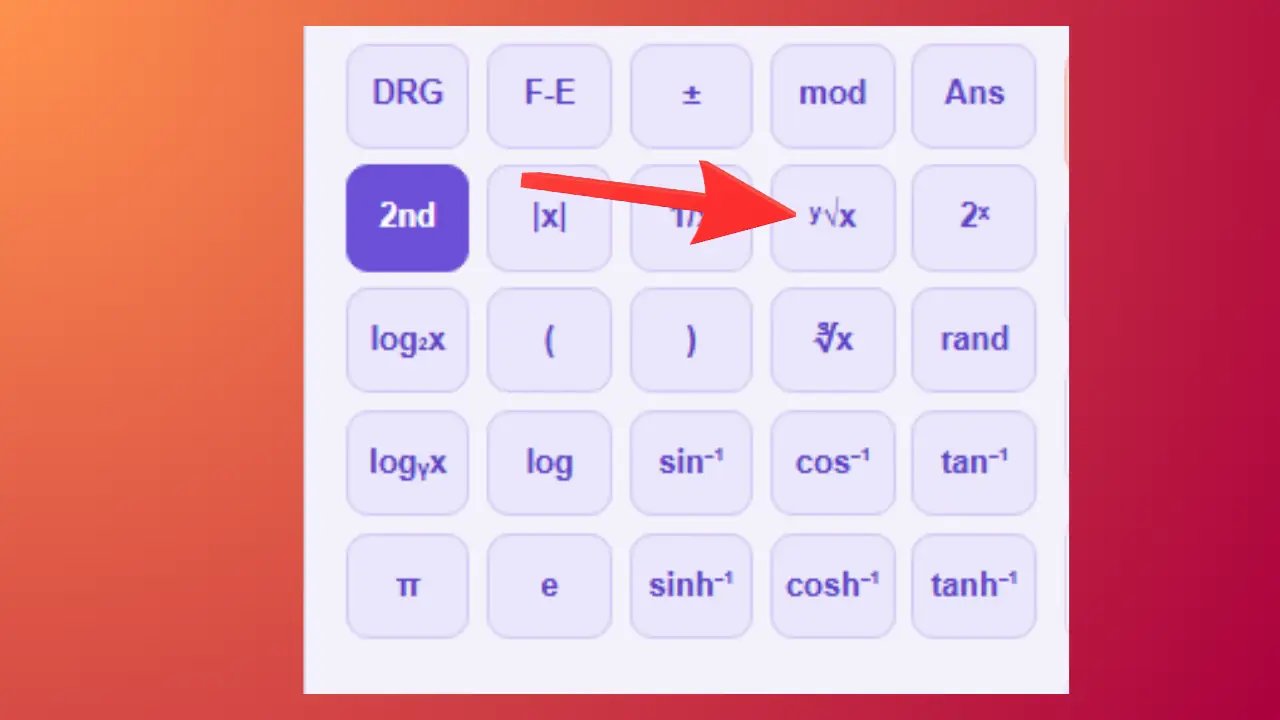
ʸ√x — yth root
Example: ³√27 = 3.
Used for: Advanced mathematics, solving equations.
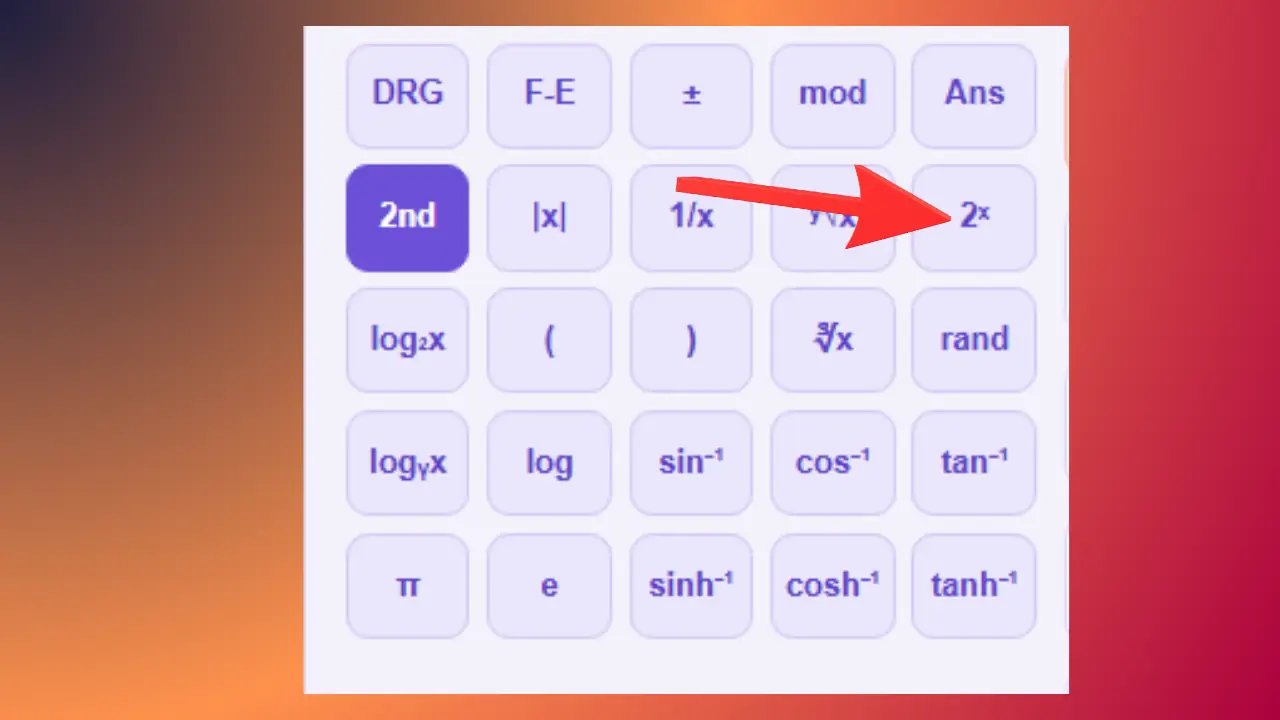
2ˣ — Power of 2
Example: 2³ = 8.
Used for: Computer science (bytes, powers of 2), binary growth.
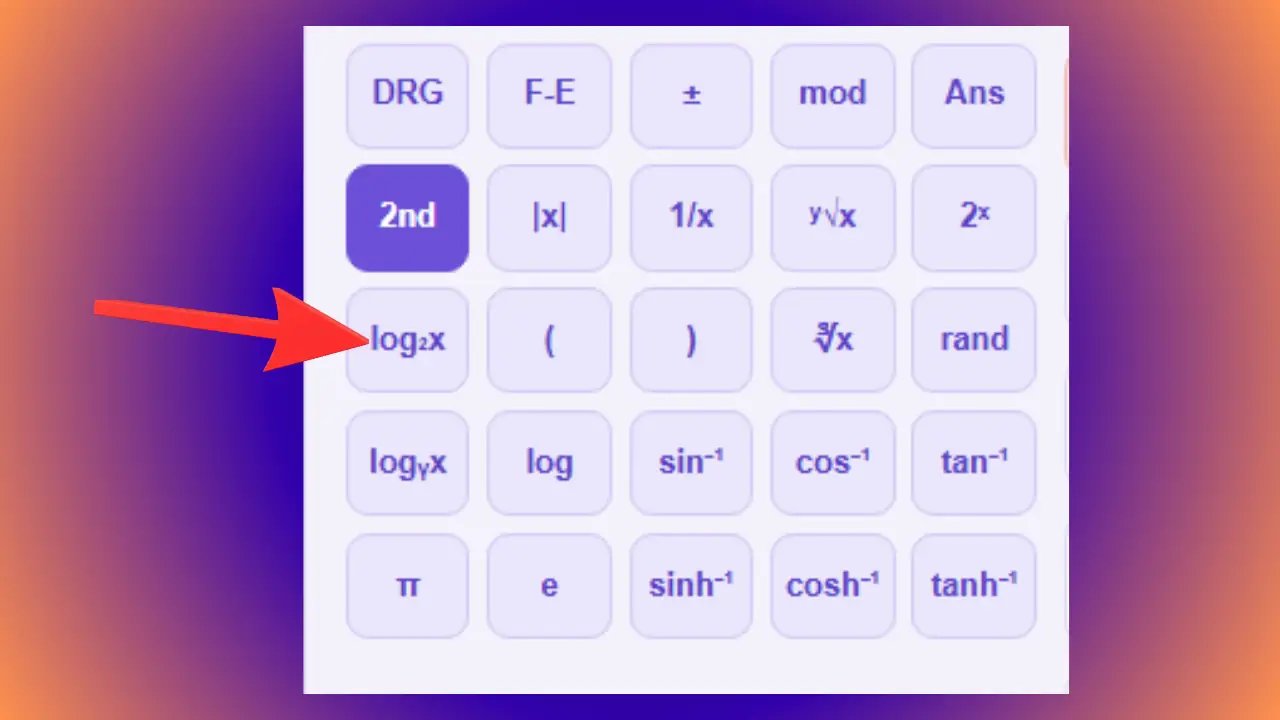
log₂x — Base-2 logarithm
Example: log₂(8) = 3.
Used for: Computer Science, Information Theory, Algorithms.
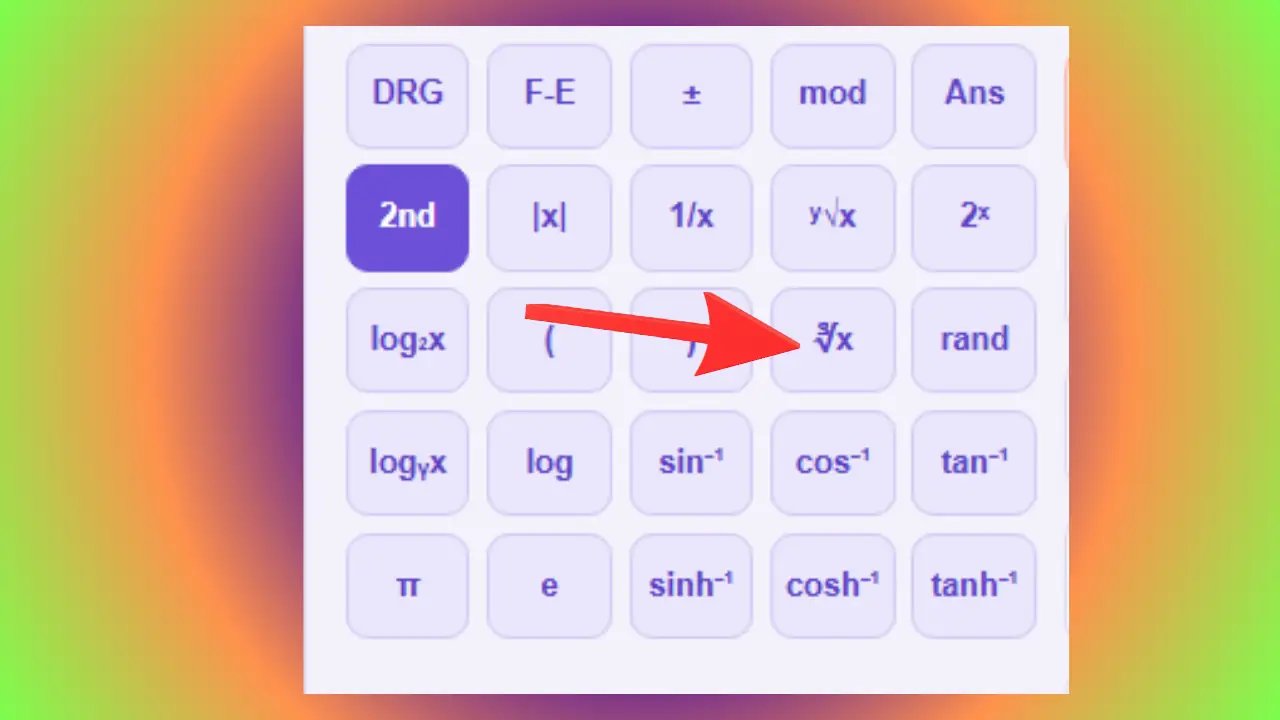
∛x — Cube root
Example: ∛125 = 5.
Used for: Volume calculations, cube dimensions, chemistry of solutions.
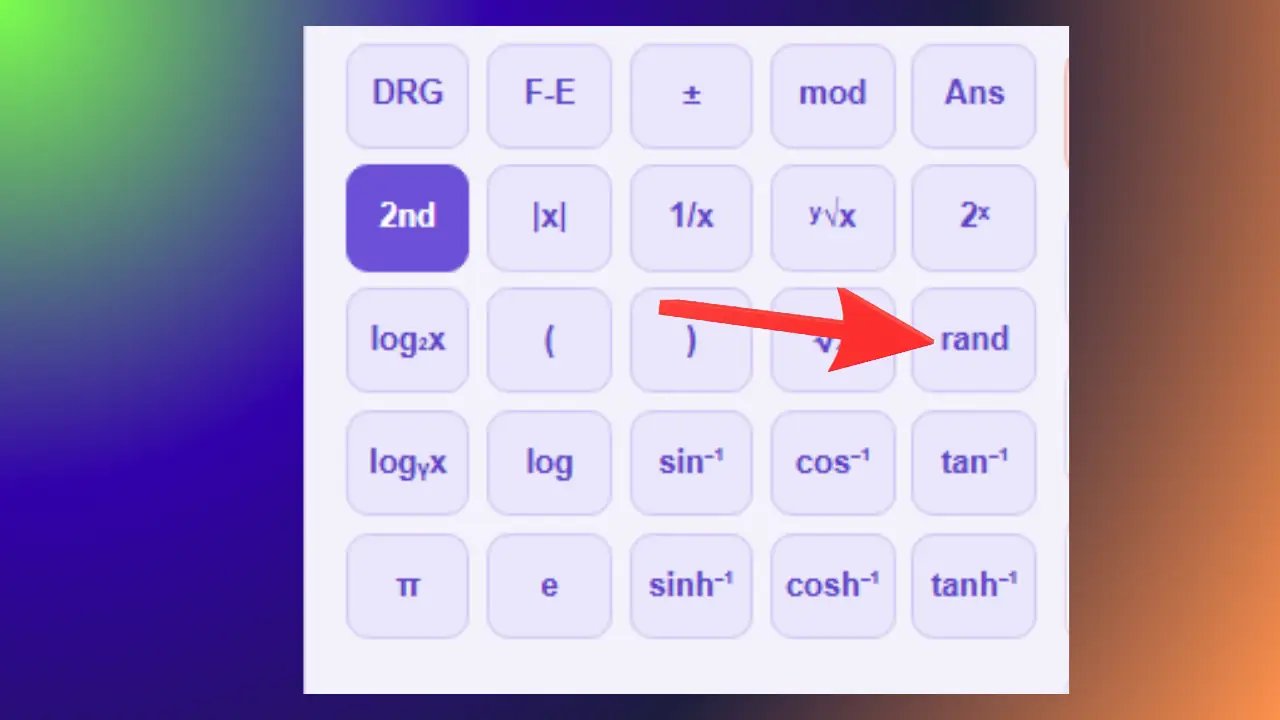
rand — Random number
Example: Possible result: 0.384721. The result changes each time it is used.
Used for: Mathematical simulations, statistics, random experiments.
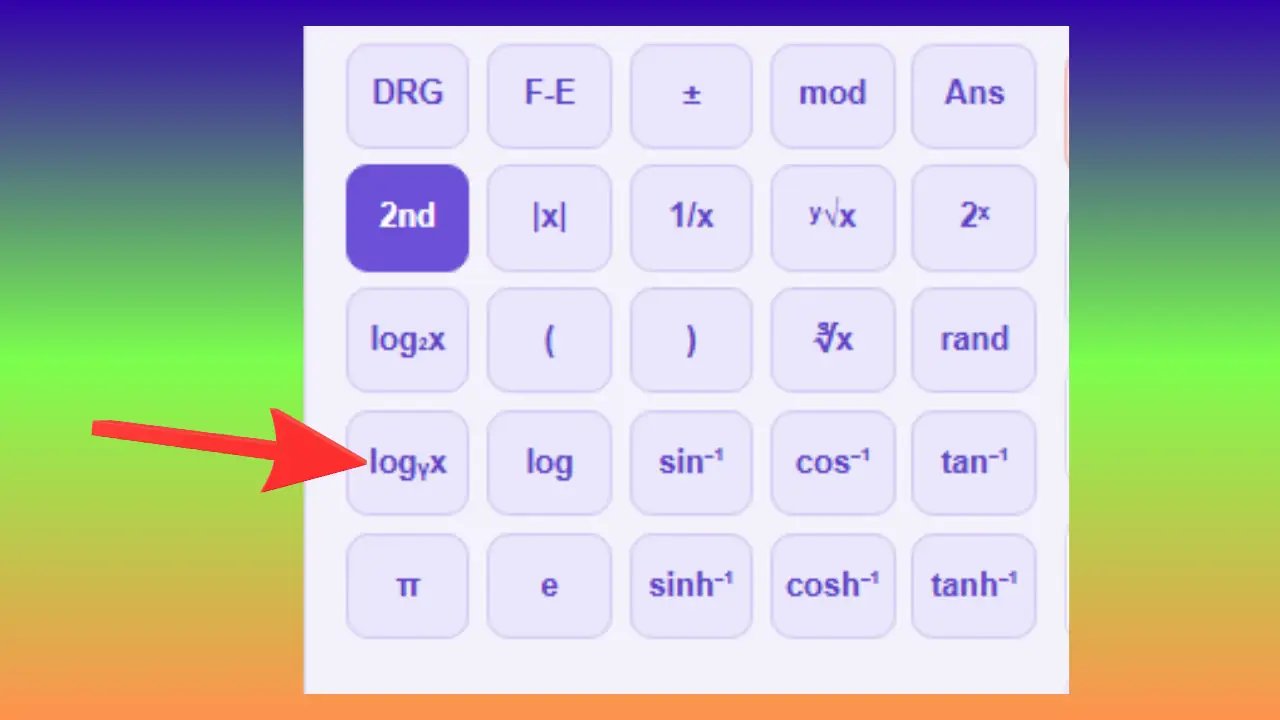
logᵧx — Logarithm to a custom base
Example: log₂(32) = 5.
Used for: Advanced mathematics, computer science, and science.
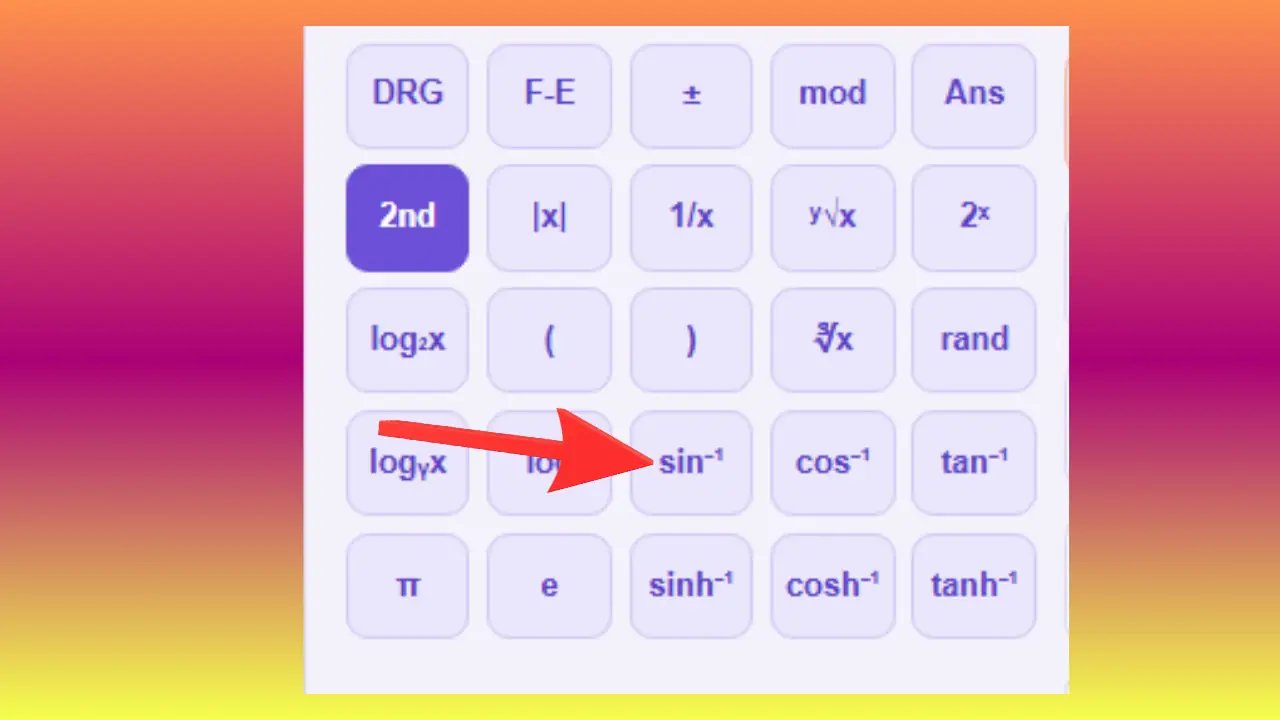
sin⁻¹ — Arc sine
Example: sin⁻¹(0.5) = 30°.
Used for: Finding an unknown angle based on known measurements in a triangle.
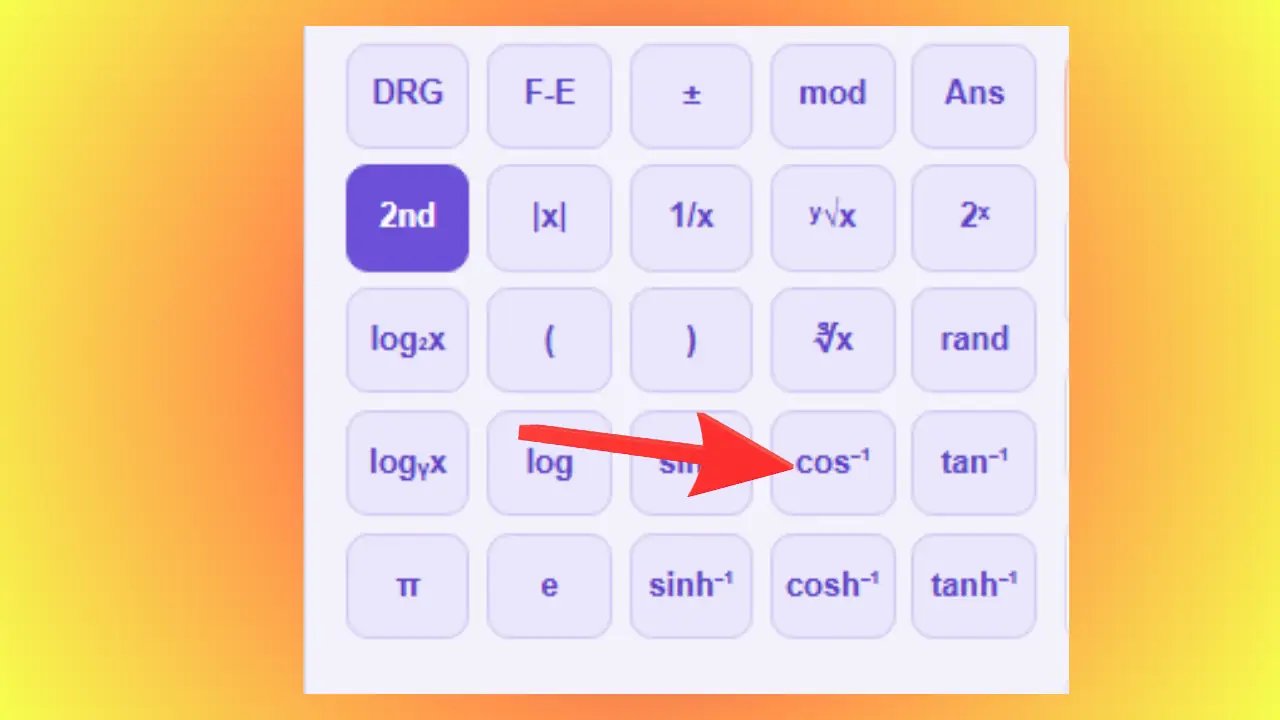
cos⁻¹ — Arc cosine
Example: cos⁻¹(0.5) = 60°.
Used for: Geometry, navigation, architecture.
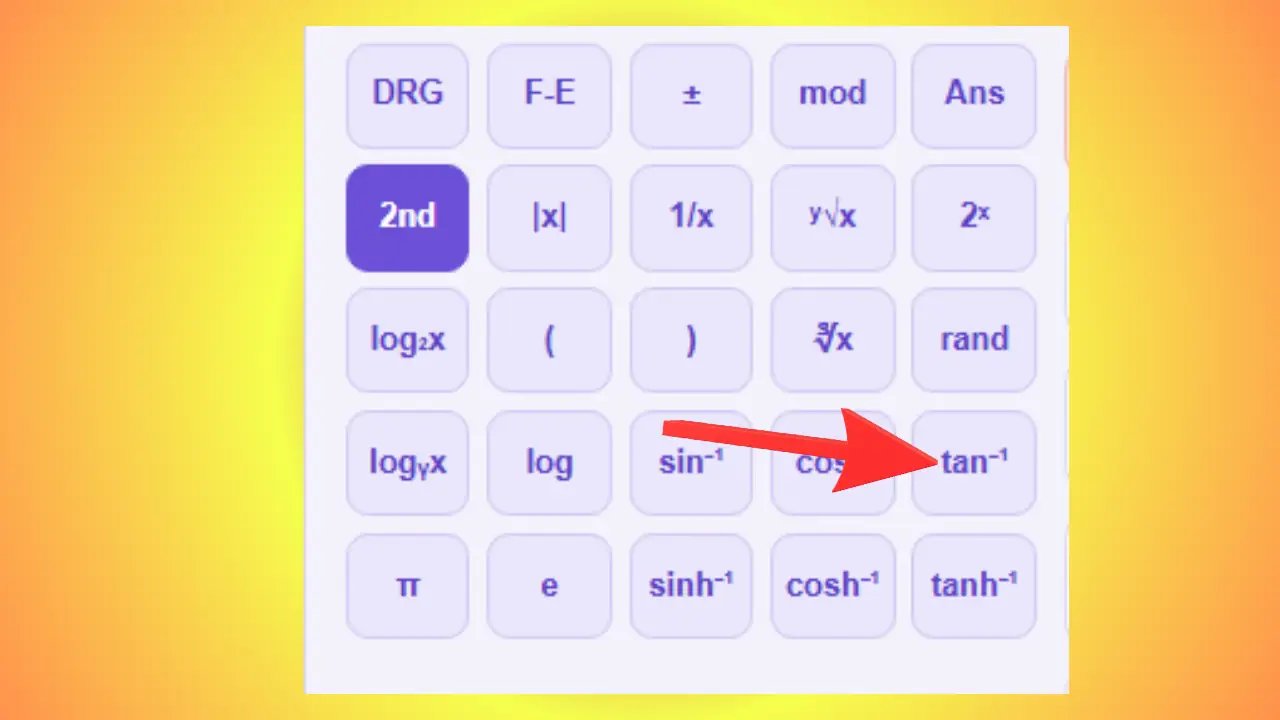
tan⁻¹ — Arc tangent
Example: tan⁻¹(1) = 45°.
Used for: Calculating slope, inclination, and angle of ascent.
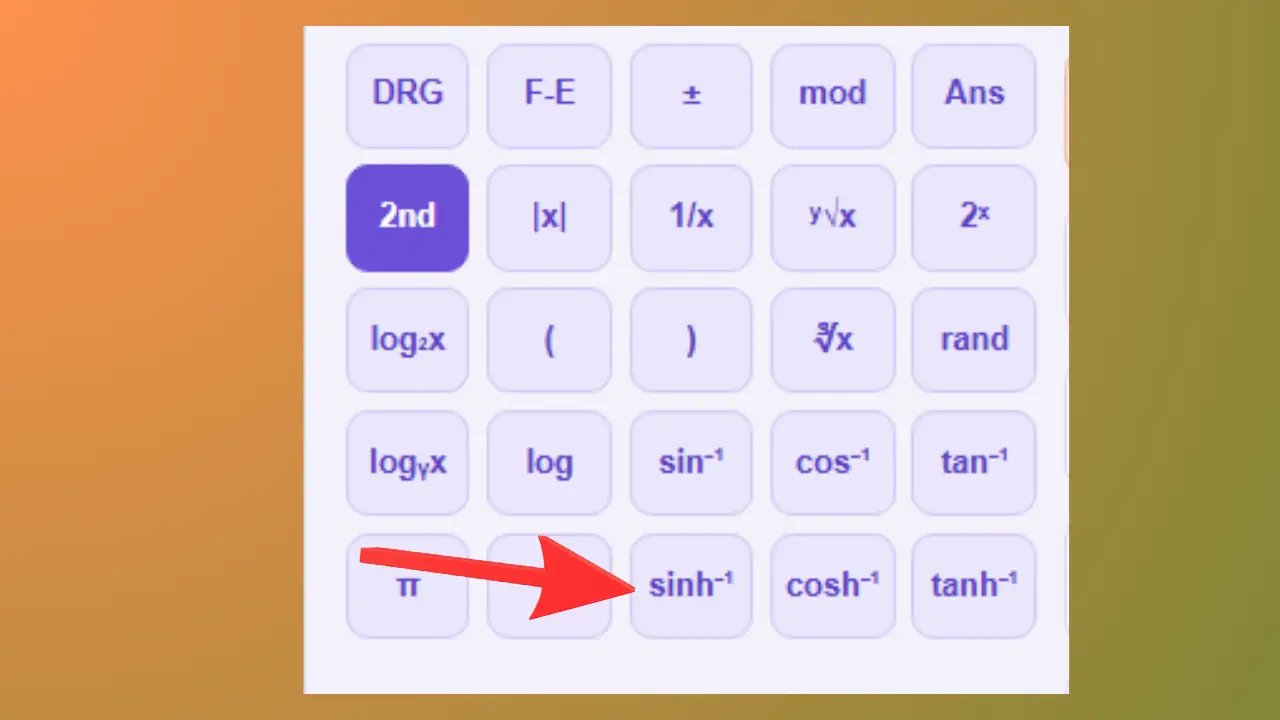
sinh⁻¹, cosh⁻¹, tanh⁻¹ — Inverse hyperbolic functions
Example: sinh⁻¹(1) ≈ 0.881.
Used for: Physics, engineering, cable and chain calculations.
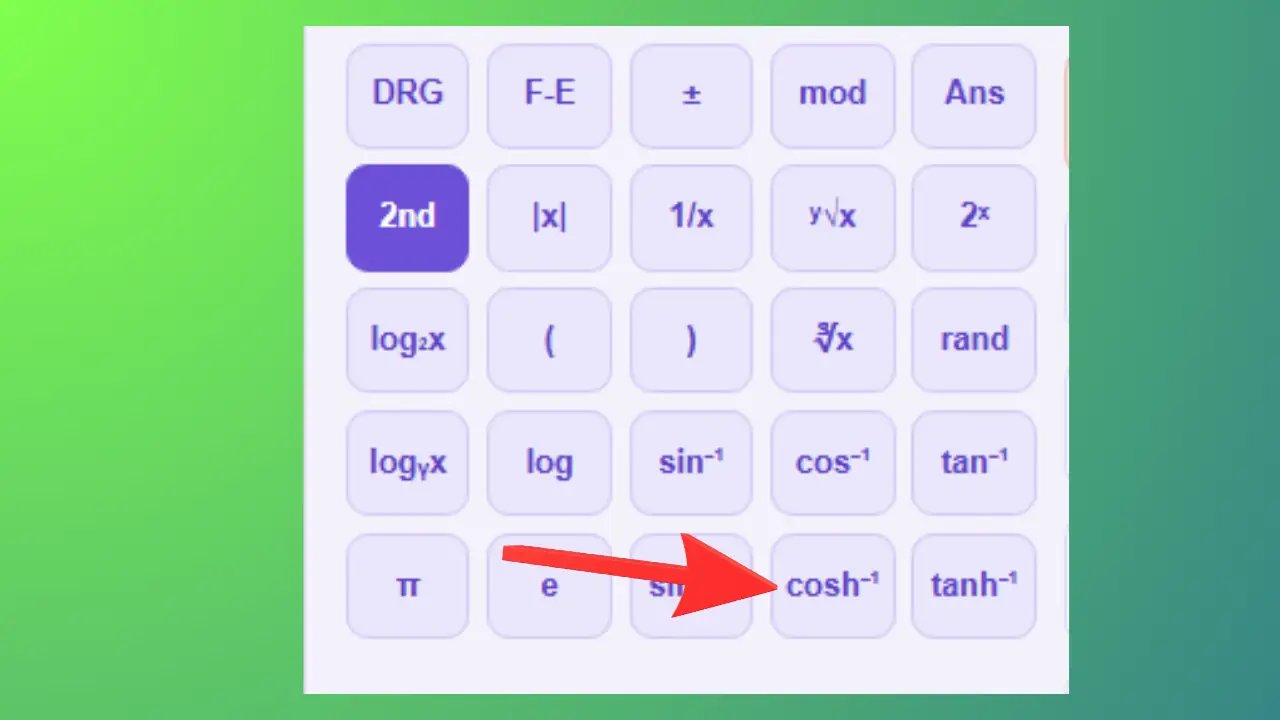
Example: cosh⁻¹(2) ≈ 1.317.
Used for: Physics, engineering, thermodynamics.
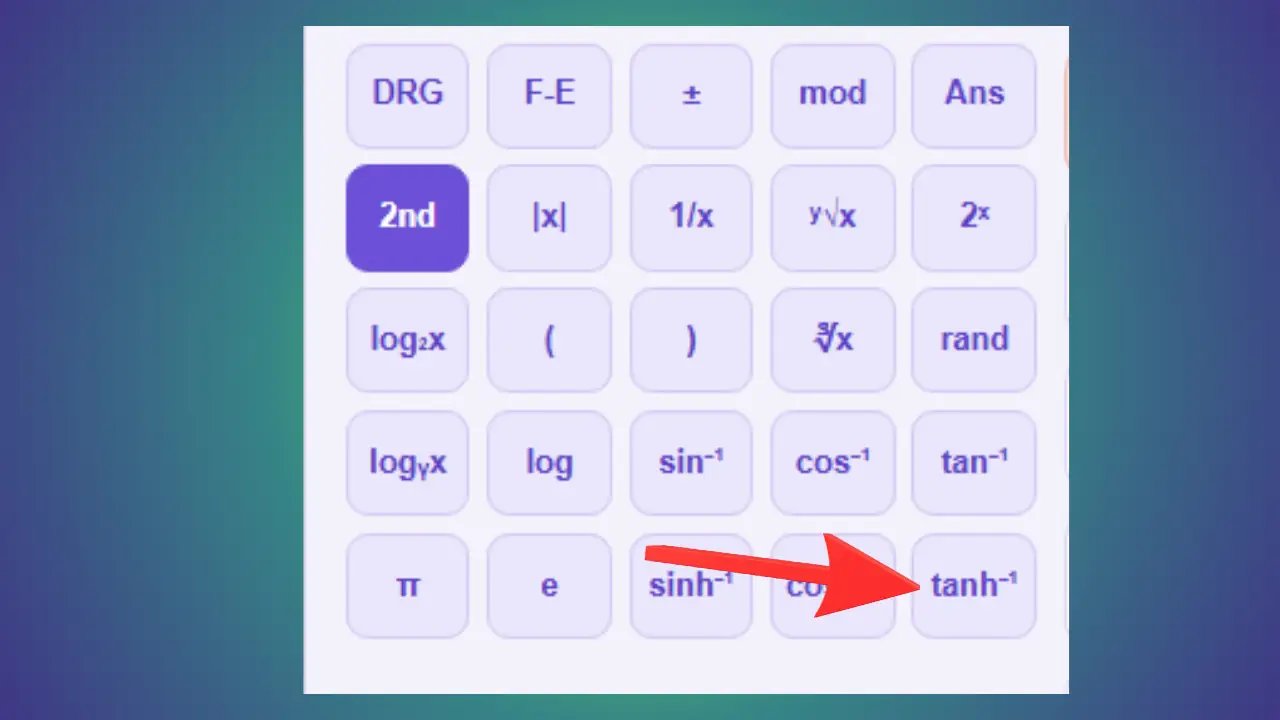
Example: tanh⁻¹(0.5) ≈ 0.549.
Used for: Statistics, neural networks, engineering sciences.
📝 Calculation Notepad
The notepad is a space next to the calculator where you can freely write notes, then save or export your calculations and comments.
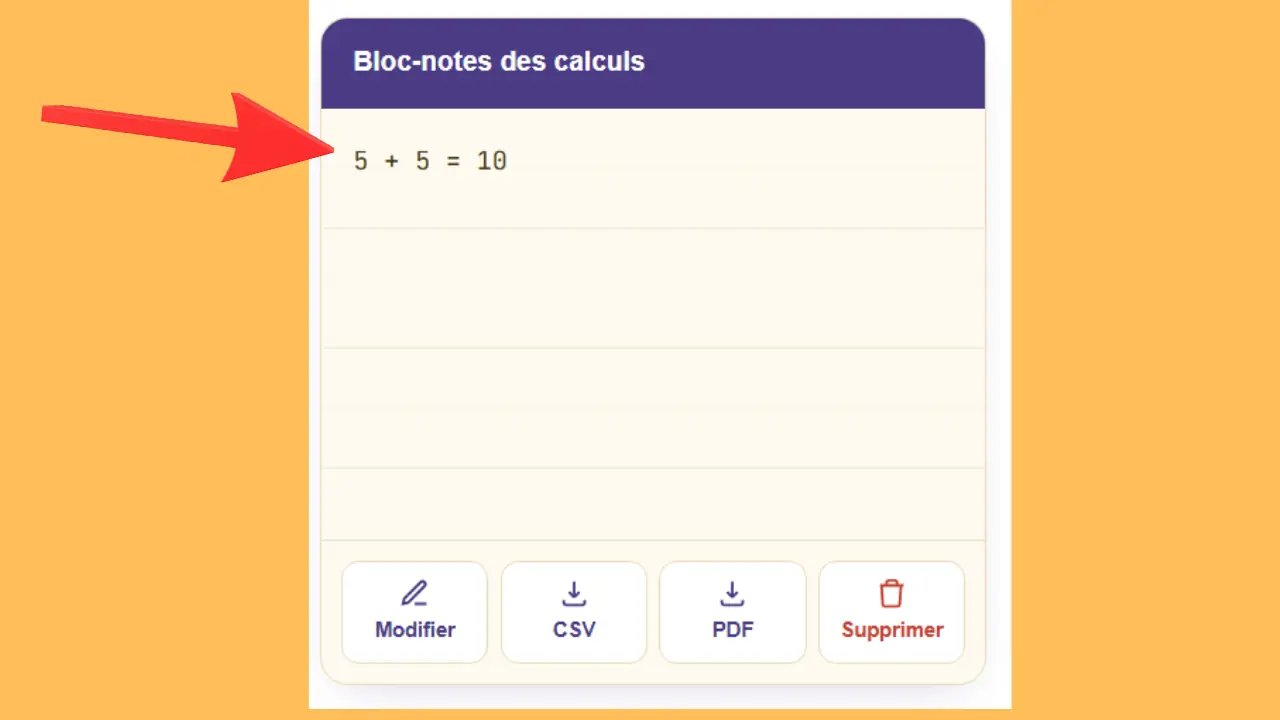
Edit
Used for: Adding personal comments, organizing your calculations by category.
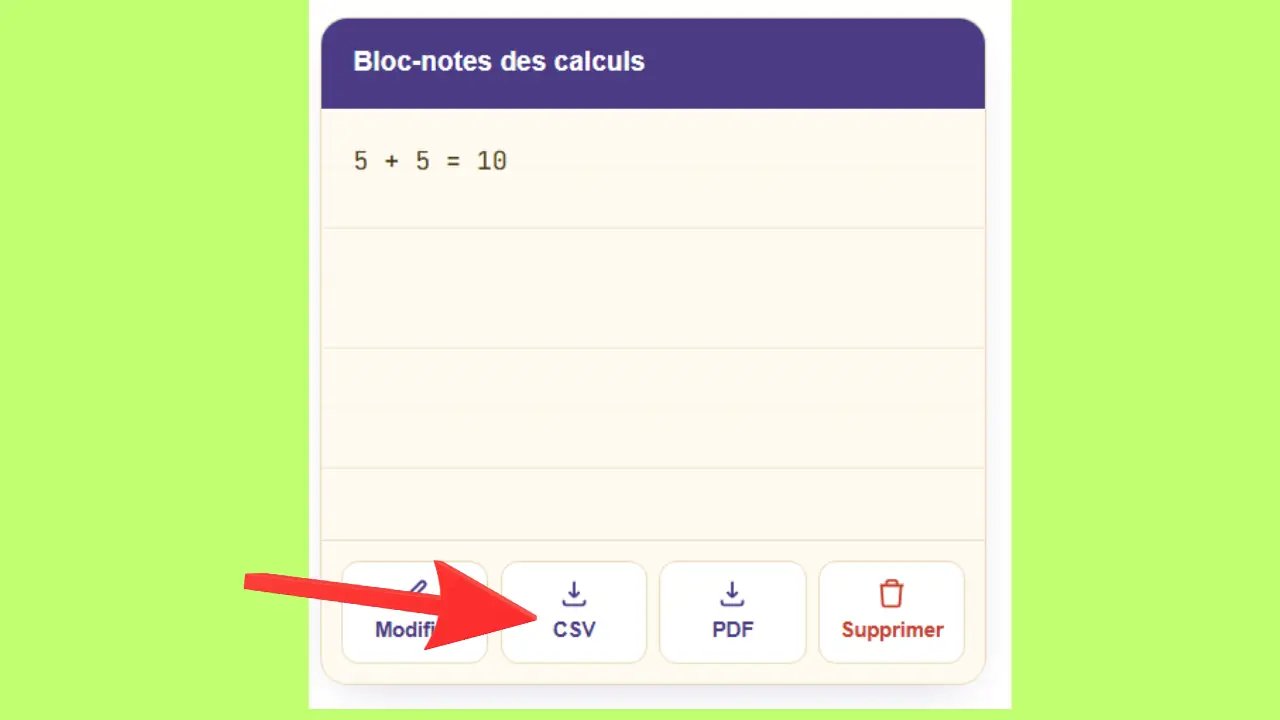
CSV
Used for: Accounting, budget tracking, data analysis.
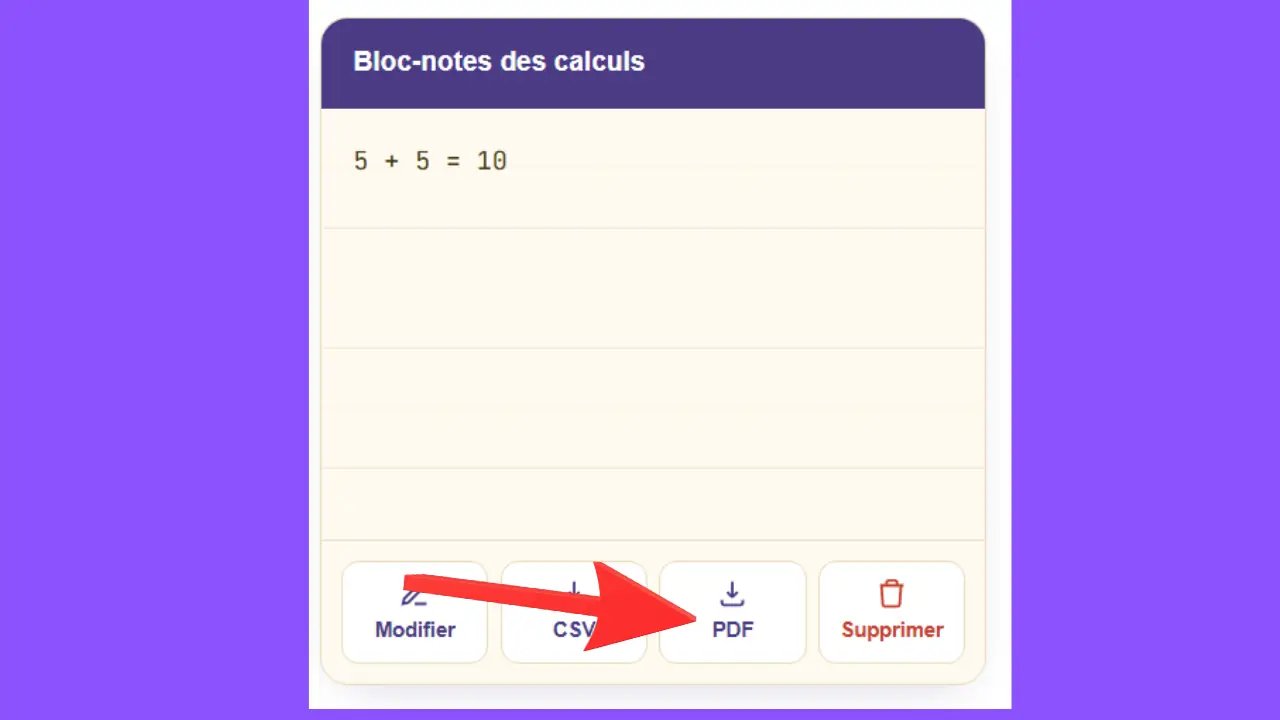
Used for: Quotes, invoices, archiving, printable reports.
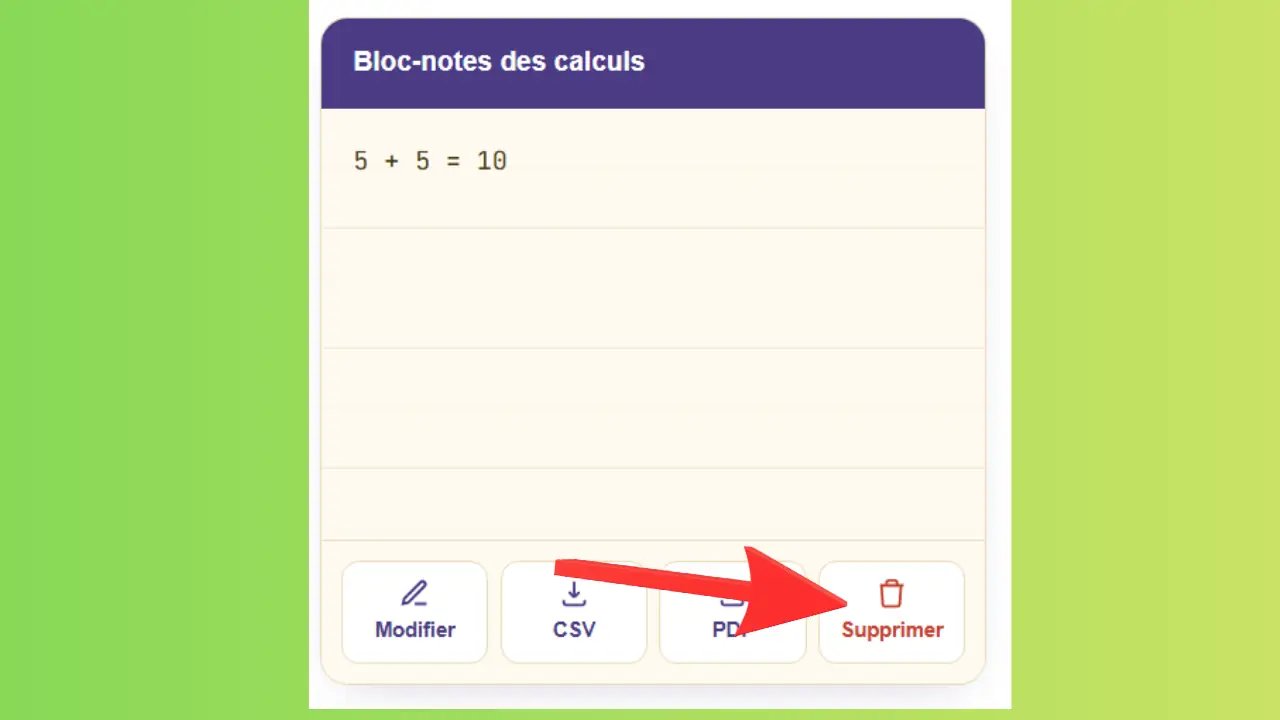
Delete
Used for: Starting a new session with a clean notepad.
Use the physical keyboard or the on-screen keyboard
There are two ways to enter your calculations. The on-screen keyboard, displayed on the screen, works with mouse clicks or taps on a touchscreen. The numeric keypad on your physical keyboard works the same way: each key corresponds directly to a number or an operator. The Enter key replaces the "=" key to confirm the calculation. Both methods produce the same result. Choose the one that works best for your device.
What is an online calculator used for in everyday life?
Much more than just a calculation tool, the online calculator meets a wide range of practical needs—from weekend grocery shopping to business invoicing. Here are the most common uses.
Managing Your Budget and Expenses
Keeping track of your personal finances has never been easier. This free calculator lets you add up your purchases, estimate rent, or plan your monthly expenses in just a few seconds.
Total for the trip: 5 items at €3.50 + €12.90 + €7.20 + €1.80 + €4.60 = exactly €30.00.
15% discount: Item priced at €89.90 — enter 89.90 × 15% = €13.49. Final price: 89.90 − 13.49 = 76.42 €.
To take your revenue projections a step further, an online revenue simulator for small businesses can be a useful complement to your calculator.
Support for Studies and Work
Whether you're a middle school student, a high school student, or a corporate executive, the online calculator lets you instantly check a result in math, physics, or chemistry—without leaving your browser.
Sales margin: Product sold for €250 (excluding tax), cost price €175. Calculation: (250 − 175) ÷ 250 × 100 = 30% margin. Essential for setting your rates as a freelancer.
Perform accounting or billing calculations
Sales tax, invoice totals, bank balances—these are all tasks where a calculator becomes an invaluable tool for both professionals and individuals.
20% VAT: €1,500 (excl. tax) × 1.20 = €1,800 (incl. tax). To find the amount excluding tax: €1,800 ÷ 1.20 = €1,500 (excl. tax).
When these calculations become repetitive, an online accounting service like Swapn can automate your daily VAT, invoicing, and bookkeeping, saving you valuable time.
Why choose an online calculator over a mobile app?
Downloading an app takes time, storage space, and sometimes even requires an account. A web calculator, on the other hand, opens right in your browser—no hassle, no wait, no compromises.
No downloads, no installation
Launch Chrome, Firefox, Safari, or Edge, go to the page, and start calculating right away. No files to download, no storage space used, and no updates to manage. The tool is ready in less than two seconds—just like those online business plan generators that you can use right away, without any hassle.
Compatible with PCs, tablets, and smartphones
The display automatically adjusts to the size of your screen thanks to its responsive design. Whether you use a mouse or your finger, both navigation methods work with the same precision. And once the page has loaded, the calculator remains fully functional even if your internet connection is unstable.
Free, with no ads or registration required
No need to create an account, no usage limits, and no ads to click through. Your calculation data is neither stored nor transmitted to any external server. Calculate freely, as often as you like, with complete privacy.
How do you calculate a percentage using an online calculator?
It couldn't be easier: enter your base amount, press ×, enter the desired percentage, and then confirm with the % key.
Example: To find 15% of 200, type 200 × 15%—the calculator displays 30 directly, without any intermediate steps.
Can you calculate sales tax using an online calculator?
Yes, exactly. To calculate the total amount (including tax) from a price excluding tax, simply multiply by 1.20 if the tax rate is 20%. To find the price excluding tax from the total amount, do the reverse: divide by 1.20.
Example: 1,500 € (excluding tax) × 1.20 = 1,800 € (including tax). Conversely: 1,800 € ÷ 1.20 = 1,500 € (excluding tax).
To better understand how VAT applies based on your legal status, see our guide on VAT for micro-businesses.
How can I perform a calculation online without downloading an app?
Simply open your browser, go to a free online calculator, and start calculating. Enter your numbers using the keyboard or the on-screen virtual keys, then confirm with "=" or the Enter key. No downloads, no installation, no registration—the tool is available right away.
Does the numeric keypad on the keyboard work for online calculations?
Yes, the numeric keypad is fully compatible. The keys 0 through 9, as well as +, −, ×, ÷, and Enter, work directly on the online calculator. If the keys aren't responding, check to make sure the Num Lock key is turned on on your keyboard.
All Types of Online Calculators
Here is a clear overview of the different types of online calculators available today, depending on your needs:
A simple online calculator is the most basic type, used for common operations such as addition, subtraction, multiplication, and division. It is ideal for quick, everyday calculations.
The Scientific Calculator is more advanced and can solve complex equations, as well as mathematical, trigonometric, and exponential functions. It is very useful for students and professionals.
"Scientific calculator" is a general term that often refers to simple calculators used for all basic mathematical calculations.
Finally, a modern online calculator can combine multiple features into a single interface, offering a comprehensive and convenient solution for all types of calculations.
Why Use Our Online Calculator?
Our online calculator is designed to provide fast, accurate, and easy-to-use calculations on both mobile devices and computers. Whether you want to perform a basic calculation or use an advanced scientific calculator, everything is available on a single page with a modern, seamless interface.
- Instant and Accurate Calculation
- Simple, user-friendly interface
- Built-in basic and scientific calculators
- Compatible with cell phones, tablets, and PCs
- Quick results without downloading
- Calculation history available
- Option to download results as a CSV or PDF file
- Free to use at any time
With our tool, you can easily solve your everyday, school, or work-related math problems in just a few seconds.
Calculation Tool Compatible with Mobile Devices and PCs
Our calculator stands out for its compatibility with all devices, whether mobile phones, laptops, desktop computers, or tablets. It is fully responsive, which means it adapts perfectly to all screen sizes to provide a smooth and comfortable experience. Unlike some platforms where the display is not optimized and results may be difficult to see or hidden, our interface guarantees perfect readability and a clear display.
In addition, the color scheme was carefully chosen to provide a design that is pleasing to the eye and easy on the eyes for users. Everything is designed to ensure maximum user comfort and prevent any difficulties during calculations.
Scientific Calculator vs. Basic Calculator
The basic calculator is ideal for everyday operations such as addition, subtraction, multiplication, and division. It is perfect for quick and easy calculations used at school, at the office, or in everyday life.
The scientific calculator, on the other hand, offers advanced features for students, engineers, and professionals. It allows users to perform complex calculations such as powers, roots, logarithms, trigonometric functions, and mathematical equations.
Simple Calculator
- Addition, subtraction, multiplication, and division
- Quick and easy to use
- Perfect for everyday calculations
- Minimalist and user-friendly interface
Scientific Calculator
- Advanced Mathematical Functions
- Calculating Sines, Cosines, and Tangents
- Power Operations and Square Roots
- Perfect for scientific and technical studies
With our platform, you can use both types of calculators for free on a single page, with no installation or registration required.
Other Free Calculation Tools
Depending on your needs, specialized calculators complement the standard calculator to provide more accurate and faster results.
Online Scientific Calculator
To go beyond the four basic operations, the online scientific calculator takes over. It handles trigonometric functions—sine, cosine, tangent—as well as logarithms, powers, and square roots. A tool designed for high school and college students as well as professionals who perform complex calculations on a daily basis.
Percentage Calculation
Find the percentage of an amount, calculate a discount, determine a percentage increase, or compare two values: a dedicated percentage calculator provides the result with just one click. This is especially useful for estimating your projected revenue before launching your business.
VAT Calculator
Converting from the pre-tax amount to the total amount including tax—and vice versa—based on current French VAT rates (20%, 10%, 5.5%, 2.1%) is instantaneous thanks to a dedicated VAT calculator. Beyond one-time calculations, regular VAT management involves filing periodic returns. Solutions like Swapn help entrepreneurs meet their tax obligations to avoid any errors.
Unit Conversion
Length, mass, temperature, currencies: An online unit converter instantly converts a value from one system to another. No more formulas to memorize or conversion errors—the result appears immediately, regardless of the original unit.
Conclusion
In conclusion, our online calculator brings together everything you need to perform your calculations—whether simple or complex—on a single page. With the basic calculator, you can quickly solve everyday problems: addition, subtraction, multiplication, division, and percentages. With the scientific calculator, you have access to advanced functions—trigonometry, logarithms, powers, and roots—that are useful for academic studies and technical fields.
These two tools have been carefully designed to save you time and provide accurate results in just a few seconds. Each feature is explained step by step, accompanied by screenshots, so that you can use the calculator with ease, regardless of your skill level.
The calculation notepad automatically records the history of each operation, which you can view, edit, and annotate at any time, then export as a CSV or PDF file as needed. The interface is fully compatible with mobile devices, tablets, and computers, ensuring a seamless user experience in any situation.
We invite you to try out these two calculators and share your feedback with us. Your comments help us continuously improve this tool so that it better meets your needs.
FAQ (Frequently Asked Questions)
What is an online calculator?
An online calculator is a digital tool accessible through a web browser—no installation required—that allows you to perform simple or advanced mathematical calculations directly from your device.
Is the calculator free?
Yes, our online calculator is completely free. No registration, subscription, or download is required to use it.
What is the difference between a basic calculator and a scientific calculator?▼
A basic calculator allows you to perform basic operations: addition, subtraction, multiplication, and division. A scientific calculator goes a step further with trigonometric functions, logarithms, powers, and roots.
Does the calculator work on a mobile device?
Yes, our calculator is fully responsive. It works perfectly on mobile devices, tablets, and desktop computers, with an interface tailored to each screen size.
How do I use the percentage (%) function?
Type the base number, press ×, enter the desired percentage, and then press %. For example: 150 × 20% equals 30, which is 20% of 150.
How do I use the memory buttons (MC, MR, MS, M+, M−)?
MS stores a number in memory, MR retrieves it, M+ adds it to the memory, M− subtracts it, and MC clears the memory. These buttons allow you to save and reuse an intermediate result.
Can I export my calculations?
Yes, the calculation history can be exported in two formats: CSV (compatible with Excel and Google Sheets) and PDF (ready to print or share). The export button is located below the history table.
How do you correct a data entry error?
Use the ← button to delete only the last digit you entered, or CE to clear everything and start over from the beginning.
Does the scientific calculator support degrees and radians?
Yes, the scientific calculator has a DEG (degrees) mode for standard trigonometric calculations. Be sure to enable this mode before using sin, cos, or tan.
How do you calculate a square root or cube root?
In scientific mode, enter the number, then press √x for the square root or ∛x for the cube root. For example: √25 = 5 and ∛27 = 3.
What is the EXP button used for?
EXP allows you to write very large or very small numbers in scientific notation. For example, 5 EXP 3 = 5 × 10³ = 5,000. It is widely used in physics, chemistry, and astronomy.
How do I add a note to a calculation in the history?
In the history table, click the cell in the "Note" column corresponding to the desired row and enter your comment. These notes will be included in the CSV or PDF export.
How do I clear the entire calculation history?
Click the "Clear History" button located below the table. This action immediately deletes all saved calculations.
Do I need to create an account to use the calculator?
No, no account or registration is required. The calculator is freely and immediately accessible from your browser, with no restrictions.